Add a fleet company
Create a company account in MonsoonOS Fleet Management with its Fleet Admin, choose emailed invoices or an automatic card charge, set a discount and see when billing starts.
- Plans
- Available on every MonsoonOS plan: Full Wash Platform and Rain Pay Terminals Only.
- Needs
- You need Fleet (included on Full Wash, an add-on on Terminals Only).
- Who can do this:
- On Full Wash, anyone whose role includes "Manage fleet accounts" (Owner, Manager and Staff by default). On Terminals Only, your admin login.
A fleet company is one account for a business whose people wash at your site. When you add it, you also add its Fleet Admin: the person at that company who manages its drivers and its bill.
Before you start
- The company's name, and its address and tax ID if you want them on file.
- The Fleet Admin's first and last name, email and phone number.
- How the company will pay: an emailed invoice each month, or an automatic charge to a card they save.
Add the company
- Open Operations › Fleet Management.
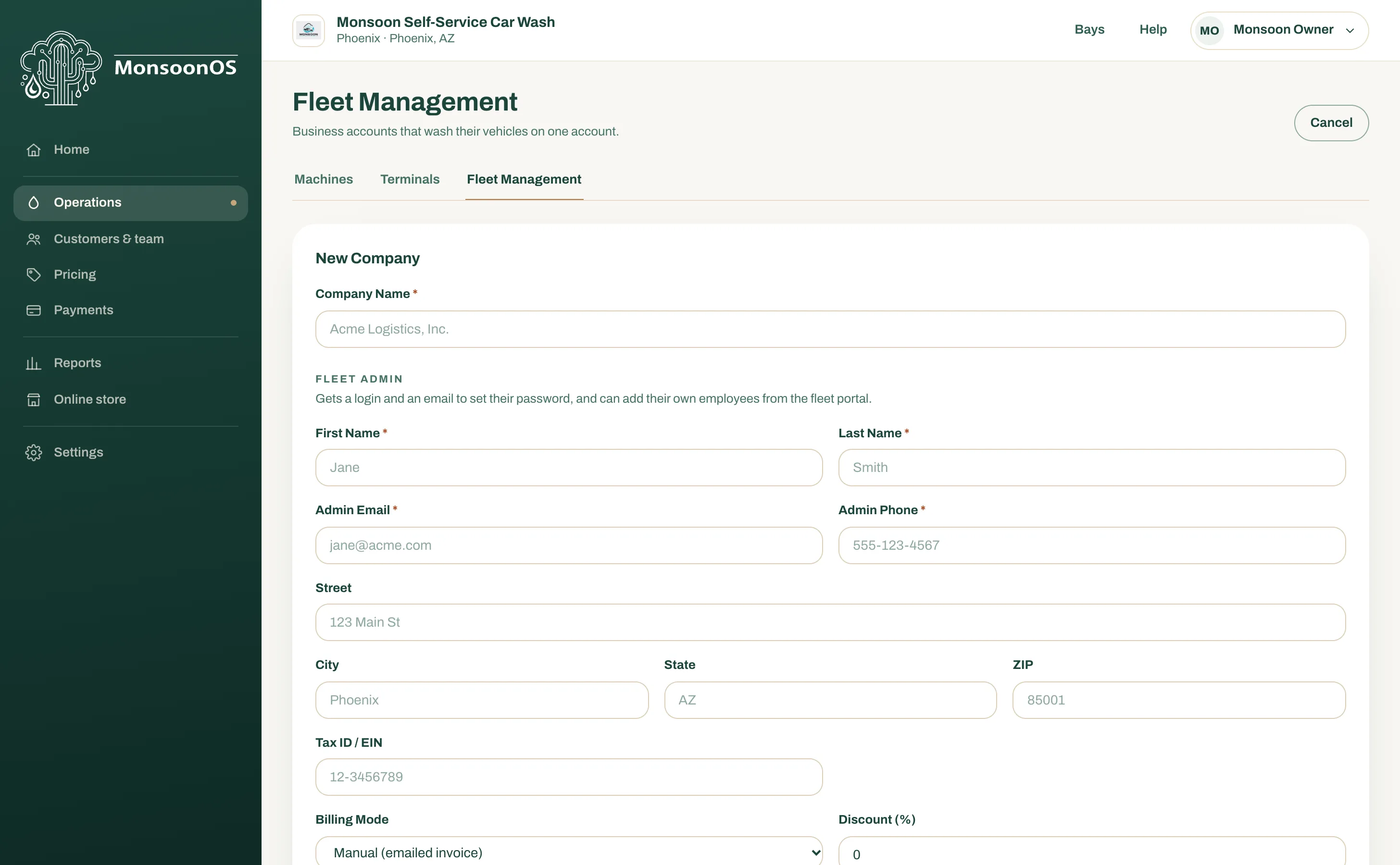
- Select + Add Company. The New Company form opens.
- Enter the Company Name.
- Under Fleet Admin, enter their First Name, Last Name, Admin Email and Admin Phone. All four are required.
- Optionally add the company's Street, City, State, ZIP and Tax ID / EIN.
- Choose the Billing Mode:
- Manual (emailed invoice): each month the company is emailed an invoice to pay.
- Automatic (charge card on file): each month the invoice is charged to the card the company saves.
- To give the company a lower price, enter a Discount (%).
- Optionally add Notes. They are for your team and never shown to the company.
- Select Add Company.
A green message confirms the company was added and that a set-password email went to the Fleet Admin. The company now shows in the Companies list as Active.
What happens next
- The Fleet Admin gets two emails: one with a link to set their password, and one with their own wash PIN and QR code, so they can wash too. See Your Wash Pass and PIN.
- The Fleet Admin's name, email and phone become the company's contact and Billing Email. You can change them on the company's page.
- On Automatic billing, the company is also emailed a link to save a card. See Fleet invoices and account status.
- The Fleet Admin can add the company's employees from their own portal, or you can add them for the company. See Add fleet members.
When billing starts
The first invoice is made 30 days after you add the company, then every month on that same day. Open the company to see its Next Billing Date under Billing. A month with no washes gets no invoice.
The discount is taken off each invoice's total, not off each wash.
Change a company's details
- In Fleet Management, select the company's name in the Companies list. Search by name, contact, email or phone if the list is long.
- Change any field, including Contact Name, Billing Email, Company Phone and Contact Phone.
- Select Save Changes.
Switching an account to Automatic (charge card on file) emails the company a link to save a card if it has none on file.
The company's status is not one of these fields. To turn a company off or back on, use Deactivate account or Reactivate account. See Fleet invoices and account status.