Add fleet members
Add a fleet company's drivers and admins in MonsoonOS one at a time or from a spreadsheet, and see what each new member receives and who a spreadsheet skips.
- Plans
- Available on every MonsoonOS plan: Full Wash Platform and Rain Pay Terminals Only.
- Needs
- You need Fleet (included on Full Wash, an add-on on Terminals Only).
- Who can do this:
- On Full Wash, anyone whose role includes "Manage fleet accounts" (Owner, Manager and Staff by default). On Terminals Only, your admin login.
Members are the people on a fleet company's account. Each one gets their own login, wash PIN and QR code, and every wash they take is billed to the company.
There are two member roles:
- Employee: washes on the company's account.
- Fleet Admin: washes too, and manages the company's employees and card on file from the fleet portal. See The fleet portal.
Members do not appear in your Customers list.
Add one member
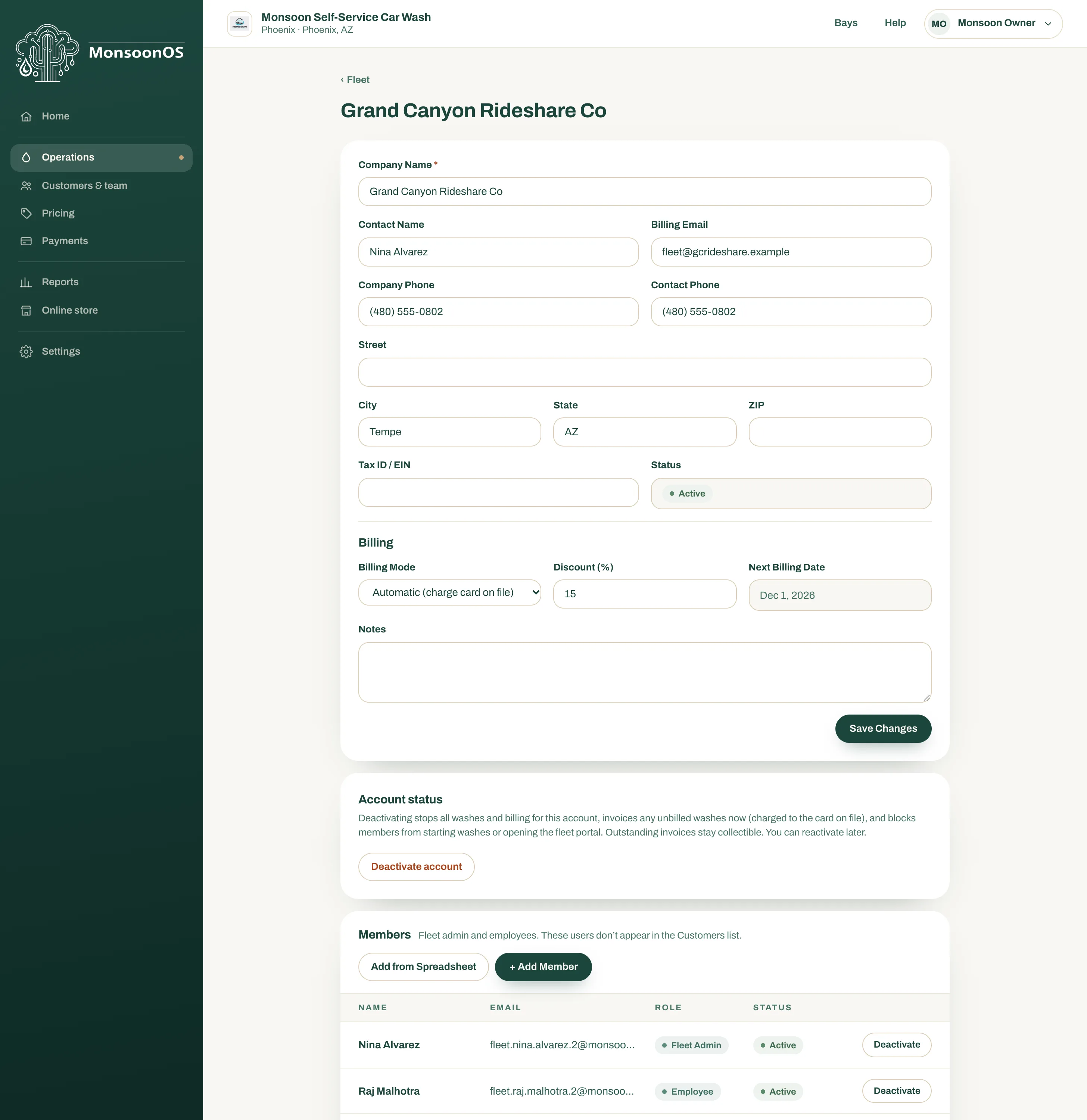
- Open Operations › Fleet Management and select the company.
- Under Members, select + Add Member.
- Enter their First Name, Last Name and Email. Phone is optional.
- Choose the Role: Employee or Fleet Admin.
- Select Add Member.
A green message confirms the member was added and that a set-password email was sent.
Add many members from a spreadsheet
The Add from a Spreadsheet panel takes an Excel file (.xlsx) or a CSV with one person on each row. Your own list works, such as a payroll export, because you match its columns before anything is added. Up to 500 people go in one upload.
- Open the company and select Add from Spreadsheet.
- To start from our layout, select Download the template. Its Start here tab explains each column; put your people on its Employees tab.
- Under Your file, choose your spreadsheet. If the file has more than one tab, pick the right one under Sheet.
- Check the columns. If MonsoonOS found them, it lists each one under "We matched your columns" with the column letter it came from. Select Change to correct one.
- If you need to match them yourself, pick the Row with the column headings, then the column for each item, or Not in my file. You need an Email column, and either First name and Last name columns or one Full name column. Phone is optional. Role takes Admin or Employee, and an empty cell is Employee.
- Select Continue.
- Review the list. It shows how many will be added, how many are already on the team and how many can't be added, with the reason for each.
- Select the Add button, which shows the number of people, for example Add 12 people.
- Keep the page open while the progress bar runs. To pause, select Stop after this group.
- When it says Finished, select Done.
If you stopped early or the connection dropped, select Add the rest to carry on. Adding the same list again never adds anyone twice.
A Full name column is split for you: "Smith, Jane" is read as last name, then first name; otherwise the last word is the last name. The review step shows the split, so you can fix a name in your file before adding.
Who a spreadsheet skips, and why
| On the review list | Why | What to do |
|---|---|---|
| Already on the team | That email is already a member of this company, active or inactive. | Nothing. This is what lets you fix a row and upload the same file again. |
| Same email as row with a row number | The email appears twice in your file. The first row counts. | Remove or correct the second row. |
| Someone here already has an account with this email. | Someone already signs in to your wash with that email, for example a customer or a team member. | Add them with a different email address. |
| Role must be Admin or Employee. | The Role cell holds something else. | Change it to Admin or Employee, or leave it empty for Employee. |
| A missing name or Please enter a valid email address. | The row fails the same checks as adding one person by hand. | Fix the row in your file. |
Rows with nothing in your matched columns, such as a total line at the bottom, are left out.
What each new member receives
Every member, added either way, gets two emails:
- A link to set their password. The link works for 7 days.
- Their 4-digit wash PIN and their personal QR code, with buttons to add the QR code to Apple Wallet or Google Wallet when your wash offers them.
The PIN is only in that email. Nobody at your wash can look it up later; the member sets a new one themselves. See Your Wash Pass and PIN.
Deactivate or reactivate a member
On the member's row, select Deactivate. A deactivated member can no longer start washes and shows as Inactive. Select Reactivate to let them wash again. Washes they already took stay on the company's bill.