Get started in the MonsoonOS app
How customers find their wash in the MonsoonOS app, create an account with email, Apple or Google, and switch to a different wash later.
- Plans
- Available on the Full Wash Platform only. Rain Pay Terminals Only does not include it.
- Audience
- Describes what your customers see, so you can answer their questions.
The MonsoonOS app is how you join a wash's Wash Club, pay per wash and start a bay from your phone. You get it from the App Store or Google Play. Some washes have their own app with their name on it instead; it works the same way, without the step of picking a wash.
Find your wash
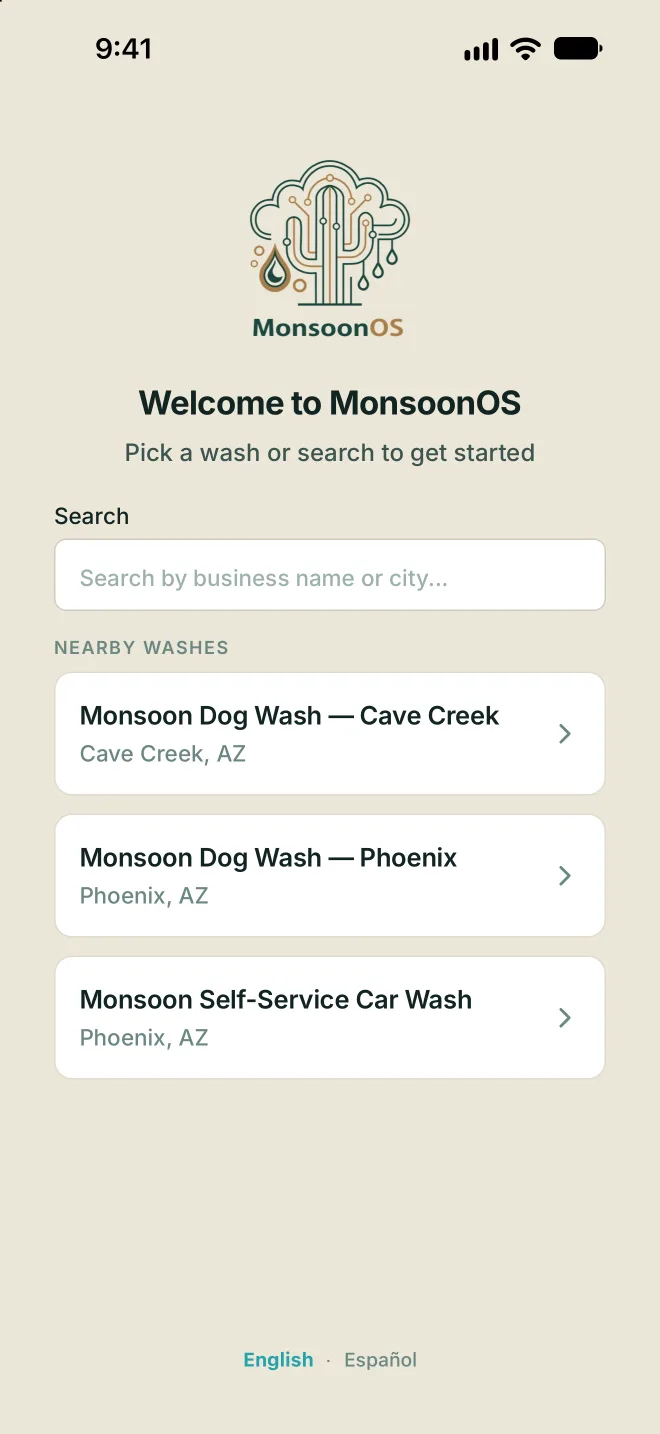
- Open the MonsoonOS app. It shows Welcome to MonsoonOS and "Pick a wash or search to get started."
- If the app asks to use your location, allow it to see the closest washes first under Nearby Washes, with how far away each one is. You can also skip it.
- To look for a wash by name or town, type in the Search box.
- Tap your wash.
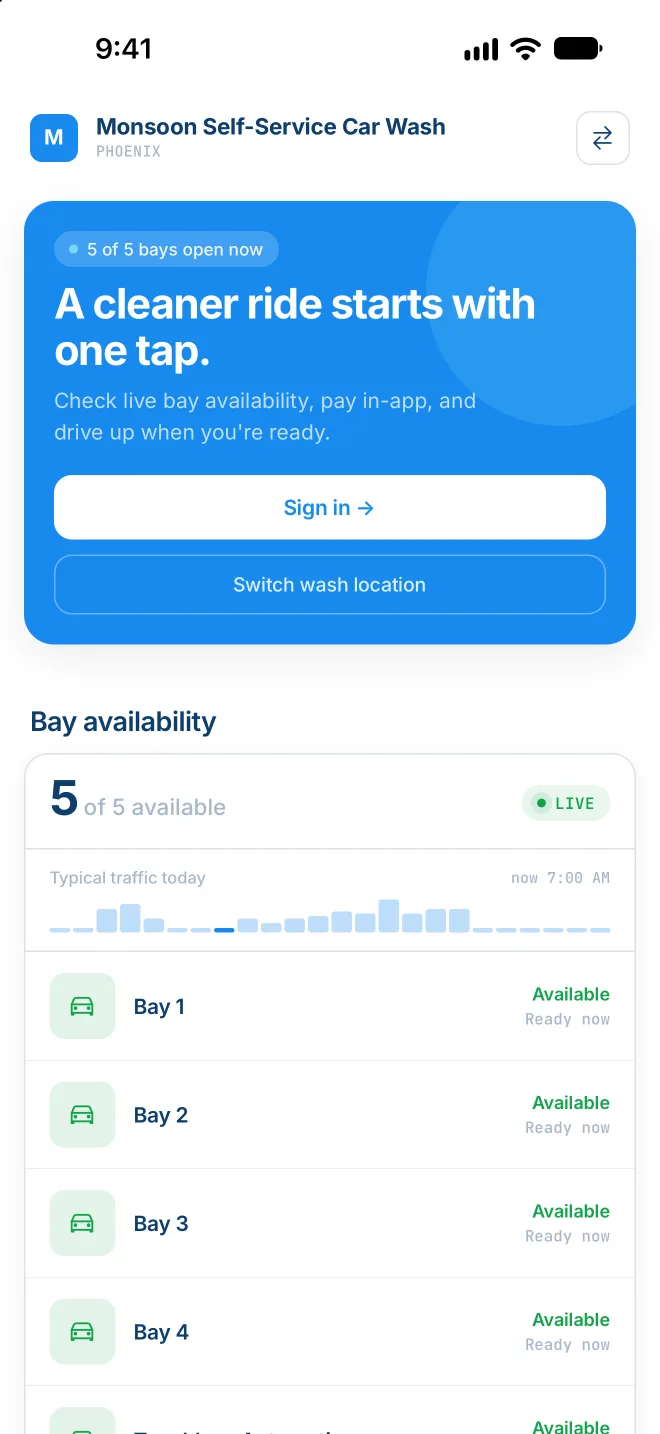
The app opens your wash's own page, with its bays, plans and address. Under the wash's name you see its town and, when the wash has listed them, its opening hours. It remembers your wash, so next time it opens straight to it.
Create your account
- On your wash's page, tap Create account.
- Either:
- tap Sign in with Apple (on iPhone) or Sign in with Google, where they are offered, or
- fill in First Name, Last Name, Email, Password and Confirm Password, then tap Create Account. The password needs at least 8 characters, with one uppercase letter and one number or special character.
- Choose how you want to wash: Wash Club or Wash On Demand. See Wash Club and Wash On Demand.
Already have an account? Tap sign in on your wash's page and use the same email, Apple or Google sign-in you used before.
Find your way around
At the bottom of the app:
- Bays: see which bays are free and start one. See Start and stop a bay in the app.
- Store: shown when your wash has an online store.
- Wallet: your membership, card, rewards and receipts. See Your Wallet.
- Account: your name, phone number, address, password and sign-in options.
The app is in English and Spanish. Tap Español or English at the bottom of the welcome or sign-in screen to switch.
Switch to a different wash
- Sign out: tap Sign Out at the top right of the app.
- On your wash's page, tap Switch wash location (on a tablet, Switch location).
- Pick the other wash, then sign in or create an account there.