Set self-service bay pricing
Choose the timer mode and set the price, included time and maximum time for the self-service bays at each location on the MonsoonOS Self-Service Bay Settings page, and copy them to your other locations.
- Plans
- Available on every MonsoonOS plan: Full Wash Platform and Rain Pay Terminals Only.
- Who can do this:
- On Full Wash, anyone whose role includes "Edit machine prices" (Owner by default). On Terminals Only, your admin login.
Self-Service Bay Settings sets what your self-service bays charge at one location. One setting covers every bay of that kind at the location: every Self-Serve Car Wash machine at a car wash, or every Dog Wash machine at a dog wash. Walk-up customers at Rain Pay terminals pay these prices, and so do Wash On Demand customers in the MonsoonOS app on the Full Wash Platform.
Open the page
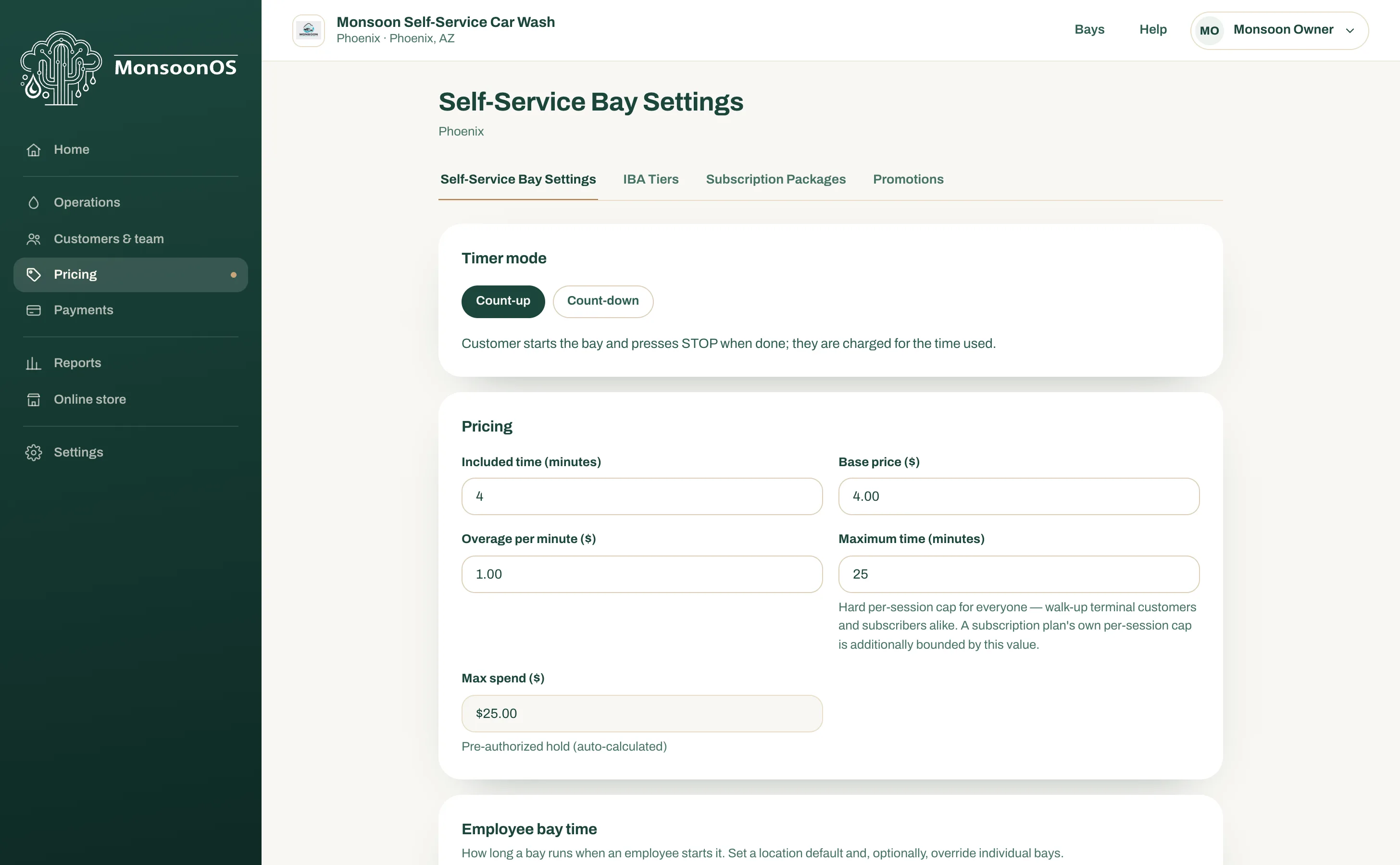
Go to Pricing › Self-Service Bay Settings. The tab appears once one of your locations has a self-service bay.
With several locations, choose the location from Location at the top of the page. Each location has its own prices, so check you are on the right one. With one location, its name shows under the page title.
Choose the timer mode
Under Timer mode, choose one:
- Count-up: the customer starts the bay and presses STOP when done, and pays for the time used.
- Count-down: the customer pre-pays a fixed block of time and can add more before it runs out. The bay's own timer counts down and stops the bay by itself.
Choose the mode your bays are set up for. Count-down needs a timer at the bay that your installer has connected. If you are not sure which you have, ask your installer before you change it.
When you save a new timer mode, every self-service bay at the location follows it: MonsoonOS changes how each bay's Stormbox relay acts, so there is nothing to change bay by bay. The prices for the other mode stay saved for when you switch back. The mode cannot change while a wash is running at the location; save again once it has ended. A bay whose relay was set by hand under Advanced on its Configure Stormbox page keeps it, and the page lists any bay it could not change.
Some timers also need a change on the timer itself. On a B&C TM5-CJX the Stormbox wire moves between the timer's credit card input (count-up) and its coin wire (count-down), and Credit Card Enable changes with it. The Configure Stormbox page shows the wiring and the timer settings for the mode you choose.
Set the prices
For Count-up:
| Field | What it does |
|---|---|
| Included time (minutes) | The minutes included in the base price. |
| Base price ($) | What the customer pays to start, covering the included time. |
| Overage per minute ($) | What each minute past the included time costs. It must be more than $0.00, and starts at $1.00. |
| Maximum time (minutes) | The longest one session can run, for every customer. On the Full Wash Platform, a Wash Club plan's own time limit cannot go past it. |
| Max spend ($) | Worked out for you. It is the pre-authorized hold on the customer's card: the most one session can cost before tax. |
For Count-down, the page asks for Block time (minutes), Block price ($) and Maximum time (minutes) instead, and shows Max spend ($) the same way.
For example, with 5 included minutes, a $2.00 base price, $0.25 a minute after that and a 30-minute maximum, Max spend ($) is $8.25: $2.00 plus 25 more minutes at $0.25.
Add-time options (count-down only)
Add-time options are the amounts of time a customer can add before their time runs out.
- Select + Add an option.
- Enter Add minutes, such as 2.
- Enter the Price ($) for that time, such as 1.00.
Under each option, the page shows its price per minute. Add as many options as you like, and select Remove to delete one. Leave the list empty if customers should not be able to add time. An option cannot add more than the maximum time.
Bay timers (count-down only)
Once a bay's timer is chosen on its Configure Stormbox page, this page checks your count-down prices against that timer as you type. Bay timers then shows what the timers get, such as Start: $10.00 is 40 quarters for 10:00, and Adding time: each quarter after the start adds 0:30.
Bay timers take money in quarters, so:
- Make the block price and every add-time option's price a multiple of $0.25.
- Give every add-time option the same price per minute, such as 2 minutes for $1.00 and 4 minutes for $2.00. That price can differ from the block's, because the timer adds the same time for each quarter after the start.
If a price does not fit, Bay timers says what to change and suggests a price that works, and the page saves nothing until every price fits.
MonsoonOS cannot change a timer's own settings, so the timer has to be set to match each new price. When a save changes what the timers need, Now set the bay timers to match appears above the save button. It names each bay with a timer and every setting to change on it, such as Item 6A/6B, BONUS TIME: 00:30 → 00:15. Key those into each timer: until you do, the timer loads the wrong time. Select a bay's name to open its Configure Stormbox page, which lists every value under Set the timer to match. Select Done once the timers are set. For the whole count-down setup, see Set up a count-down bay.
Save
Select Save settings. Once the page has been saved, the button says Update settings. A message confirms Self-Service Bay Settings saved.
Use the same prices at other locations
With several locations, copy one location's saved settings to the others instead of typing them again:
- Save the location's settings first. Copy to other locations cannot be selected while you have changes that are not saved.
- Select Copy to other locations.
- Tick each location to copy to, or All other locations.
- Select the Copy to button, which shows how many locations you ticked. A message confirms how many locations were copied to.
The locations you tick get exactly these settings, and their own settings for these bays are replaced. Choose a location from Location afterwards to check it.
A copy follows the same rules as saving:
- Count-down prices are checked against the bay timers at every location you tick. If one does not fit, nothing is copied, and the message names the location and what to change.
- If the copy changes a location's timer mode, its bays follow the new mode. The mode cannot change while a wash is running there: nothing is copied, and you can copy again once it has ended.
- After a count-down copy, Now set the bay timers to match lists the timer settings to change at each location you ticked.
Set employee bay time
How long a bay runs when someone on your team starts it free of charge has its own page, for self-service bays, vacuums and dog wash bays together.
- Go to Operations › Employee Time. With several locations, choose the location from Location at the top of the page.
- Under Location default, type the Minutes. Every bay with no time of its own uses it.
- Under each kind of bay, type minutes for a bay that needs a different time. Leave a box blank to use the location default.
- Select Save employee time. A message confirms Employee time saved.