Start and stop a bay in the app
How customers start a bay, vacuum or in-bay automatic from the Bays tab of the MonsoonOS app and stop it when done.
- Plans
- Available on the Full Wash Platform only. Rain Pay Terminals Only does not include it.
- Audience
- Describes what your customers see, so you can answer their questions.
The Bays tab lists every machine at your wash with its status, so you can see what is free before you drive in and start it from your phone. You need a Wash Club plan or a card saved for Wash On Demand. See Wash Club and Wash On Demand.
Read the Bays tab
Each machine has a card with its type (such as Self-Service, Automatic, Vacuum or Dog Wash), its name and its status:
- Available: free. The card says Ready to use.
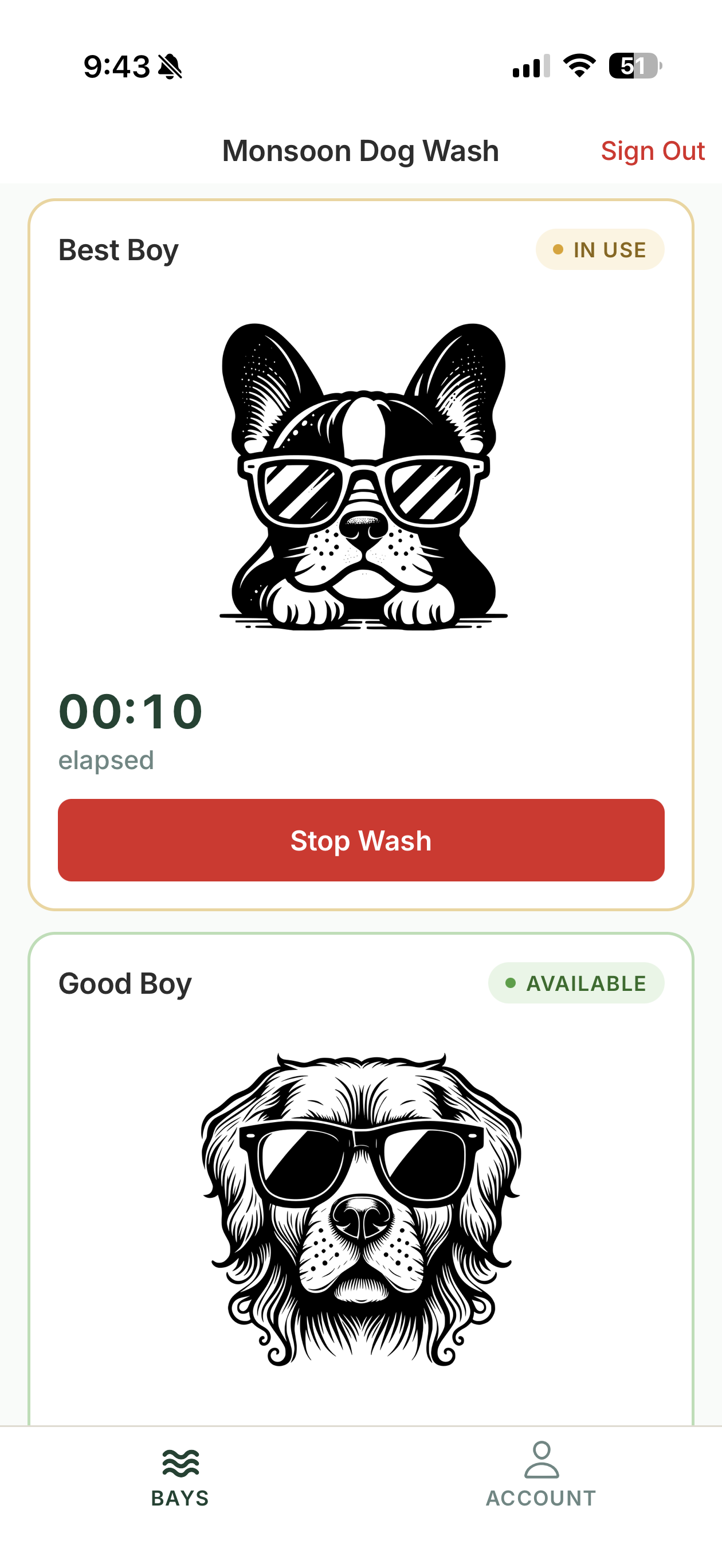
- In Use: someone is using it. Your own wash shows its timer.
- Unavailable: closed for now.
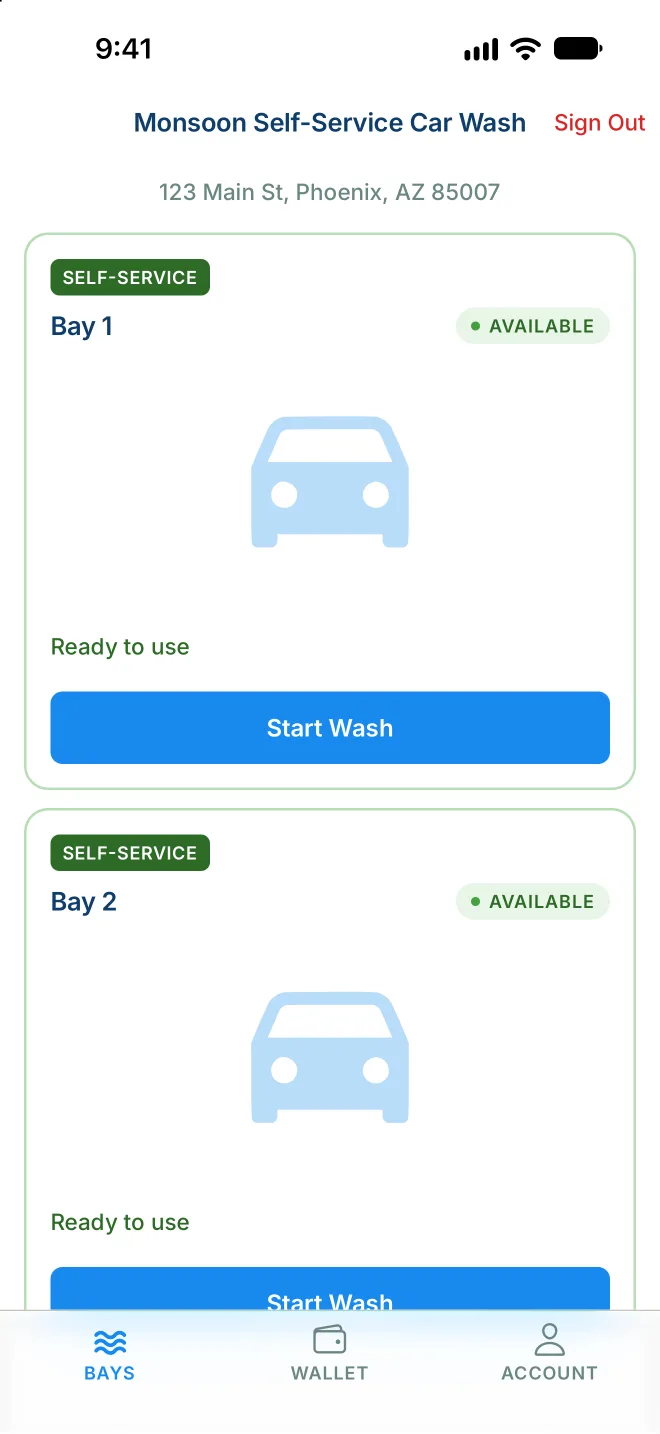
If your wash has more than one location, the top of the tab shows where you are washing. Tap Change Location to pick another.
Wash Club members also see how much of their plan is left, for example "3 of 4 washes remaining this period." with the date it resets.
Start a bay
- Go to the bay or machine.
- Tap Start Wash on its card, or Start Vacuum for a vacuum.
- Answer any question the app asks (see below).
The card shows Starting Wash…, then your timer. A bay with a set amount of prepaid time shows Loading your time… while your time is sent to the bay's timer, then your timer.
You may be asked:
- What the wash costs. On Wash On Demand, the app shows the price before the bay starts, titled with the bay's name. A bay with prepaid time shows its price and minutes, such as "$10.00 for 10 minutes", and what extra time costs. A bay you pay by the minute shows its starting price, its price per minute and the most it can cost. Tax is added if your wash charges it, and the app says how much it holds on your card. Tap the button with the price, such as Start Wash · $10.00, to start.
- Use your free wash? Wash Club members with a free wash from the wash choose Use free wash or Use monthly wash. On Wash On Demand, a free wash is used without asking.
- Start another wash? If you just finished or just started a wash, the app checks before starting a separate one. On Wash On Demand this check is part of the price question.
- Confirm you're at the bay. Some bays ask the app to check that your phone is next to them. Allow Location (and Nearby devices on Android) when asked, then tap Start Wash again.
At an in-bay automatic
Tapping Start Wash opens Choose a wash, the wash menu. Each wash shows Included if your plan covers it, Upgrade for and the difference if it costs more than your plan covers, or Purchase for and its price. Anything you pay for is charged to your card on file. The wash may then offer Add extras?: pick any you want, or tap Skip.
While it runs
Your card shows a timer:
- Counting down, with "your wash", when the bay runs for a set time. Some bays let you buy more time with buttons such as +5 min.
- Counting up, with "elapsed" or "minutes used", when you pay or count by the minute.
Stop your wash
Tap Stop Wash (or Stop Vacuum). If you pay by the minute, a Wash Summary shows the time and the Total charged. If your plan counts minutes, Wash Complete shows the minutes used and how many you have left.
Some washes have no Stop button: an in-bay automatic runs its full cycle, and a bay with a set amount of prepaid time stops when the time runs out.