The Setup Guide, step by step
Every step of the MonsoonOS Setup Guide in order, which plans see it, what finishes it and which steps unlock others.
- Plans
- Available on every MonsoonOS plan: Full Wash Platform and Rain Pay Terminals Only.
- Who can do this:
- On Full Wash, anyone whose role includes "Setup checklist" (Owner by default). On Terminals Only, your admin login.
The Setup Guide is a checklist inside MonsoonOS that takes you from a new account to a wash that is ready for customers. It checks your real data, so a step you finish on another page is ticked off here too.
Open the Setup Guide
On the admin home, select Continue setup beside Finish setting up under Needs your attention, or go to Settings › Setup Guide.
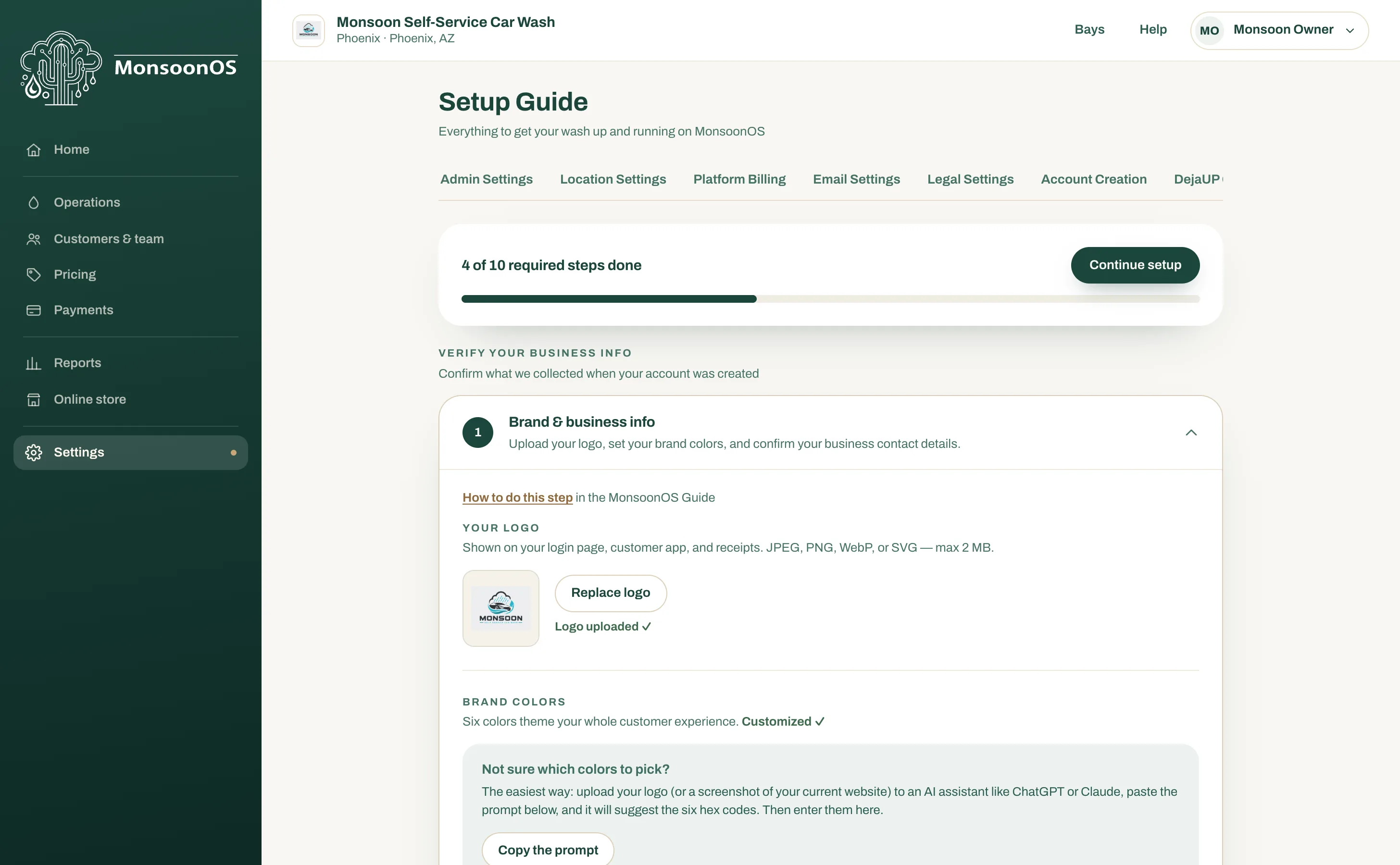
- How many required steps are done, and Continue setup to jump to the next one.
- Steps are grouped; this is Verify your business info.
- Each step opens to show what to do.
How steps work
- Steps are in five groups, in the order they depend on each other.
- A locked step opens when the steps it needs are done. For example, pricing opens once you have added machines.
- Some steps finish on their own when MonsoonOS sees the work done, such as a machine added or a Stormbox online. Others ask you to confirm, with a button such as Everything looks right.
- Optional steps have Skip for now. You can come back to them at any time.
- You only see steps that apply to your plan and your equipment.
The steps
Verify your business info
These confirm what we entered when we created your account.
| Step | What to do | Plans |
|---|---|---|
| Brand & business info | Upload your logo, set your brand colors and confirm your business contact details. The step needs a logo before it can finish. | Both |
| Location details | Confirm the name, address and phone number of each location. | Both |
| Legal settings | Confirm the details used in your public Terms of Service and Privacy Policy. | Full Wash |
Equipment
Opens when the business info steps are done.
| Step | What to do | Plans |
|---|---|---|
| Add your machines | Add every bay, vacuum, in-bay automatic and dog wash you operate. Select I've added all my machines when the list is complete. | Both |
| Bring your Stormboxes online | Claim the Stormbox for each machine, turn it on and assign its relays. Your installer usually does the wiring; this step connects each Stormbox to the right machine. | Both |
| Machine photos | Upload a photo of each machine, or select Use default images. | Both |
Pricing & revenue
Opens when you have added machines. You see one step per kind of machine you have.
| Step | What to do |
|---|---|
| Self-service bay pricing | Set the price and timer mode for your self-service bays. |
| Vacuum pricing | Set the price and timer mode for your vacuums. |
| In-bay automatic wash menu | Create the wash tiers customers choose from at your in-bay automatics. |
| Dog wash pricing | Set the price and timer mode for your dog wash stations. |
Selling
| Step | What to do | Plans |
|---|---|---|
| Subscription packages | Create the Wash Club plans customers can subscribe to. | Full Wash |
| Promotions | Optional: create promo codes, free washes or account credits. | Both |
| Pair payment terminals | Pair the Rain Pay terminals at your bays so walk-up customers can pay. See Pair an Experience terminal or Register an MDB card reader. | Both |
Optional extras
All on the Full Wash Platform. Fleet programs also appears on Terminals Only when you have the Fleet add-on.
| Step | What it opens |
|---|---|
| Customers | Your customer accounts. |
| Employees | Your team, to invite staff and choose their roles. |
| Fleet programs | Company accounts that wash on one monthly bill (Pack programs for dog washes). |
| Online store | Your own online store. |
When every required step is done, Finish setting up leaves the admin home. Before you open to customers, run the go-live checklist for your plan: Terminals Only or Full Wash.