Customer emails
Which emails MonsoonOS sends to your customers and team on each plan, and how to change their wording, add your email logo and send yourself a test in Email Settings.
- Plans
- Available on every MonsoonOS plan: Full Wash Platform and Rain Pay Terminals Only.
- Who can do this:
- On Full Wash, anyone whose role includes "Customer emails" (Owner by default). On Terminals Only, your admin login.
MonsoonOS sends emails for you: receipts, membership notices, store orders and alerts. Email Settings lists the ones your business sends and lets you change their wording. MonsoonOS fills in the facts, such as amounts, dates and bay names, so those stay correct whatever you write. The sender address is set by MonsoonOS and cannot be changed here.
Which emails you have
The list only shows emails your business actually sends, based on your plan and what you have added to it.
Rain Pay Terminals Only:
- Terminal Wash Receipt: sent when a customer asks for a receipt at the terminal.
- Promotion QR Code: used when you email a promotion's QR code.
- Device Offline Alert and Device Recovery Alert: sent to your team when bays stop or start reporting in.
- The six Fleet emails, when you have Fleet.
- Tip Box Receipt, when you also have Tip Box.
Full Wash Platform: all of the above (the Fleet emails are always included), plus these groups:
| Group | Examples |
|---|---|
| Memberships | Subscription Welcome, Subscription Renewal Receipt, Wash on Demand Welcome, Plan Change Scheduled, Subscription Cancellation, and the notices when a membership payment fails, access is paused and payment recovers |
| Store Orders | Customer Order Confirmation, Order Shipped / Completed, Order Ready for Pickup, Order Refunded, and the new-order email to your shipper |
| Customer Account | Payment Update Request, Account Deletion Confirmation, Terms & Conditions Change Notice, and the email telling a customer a held payment did not go through |
| Operations | Employee / Customer Invite, Shippo Connection Expired, Store Closed: Shipping Not Set Up |
Some alerts to your team always use the standard wording, such as the email when someone's team access changes and the email when a payment needs a check. They are not in the list, because there is nothing to change.
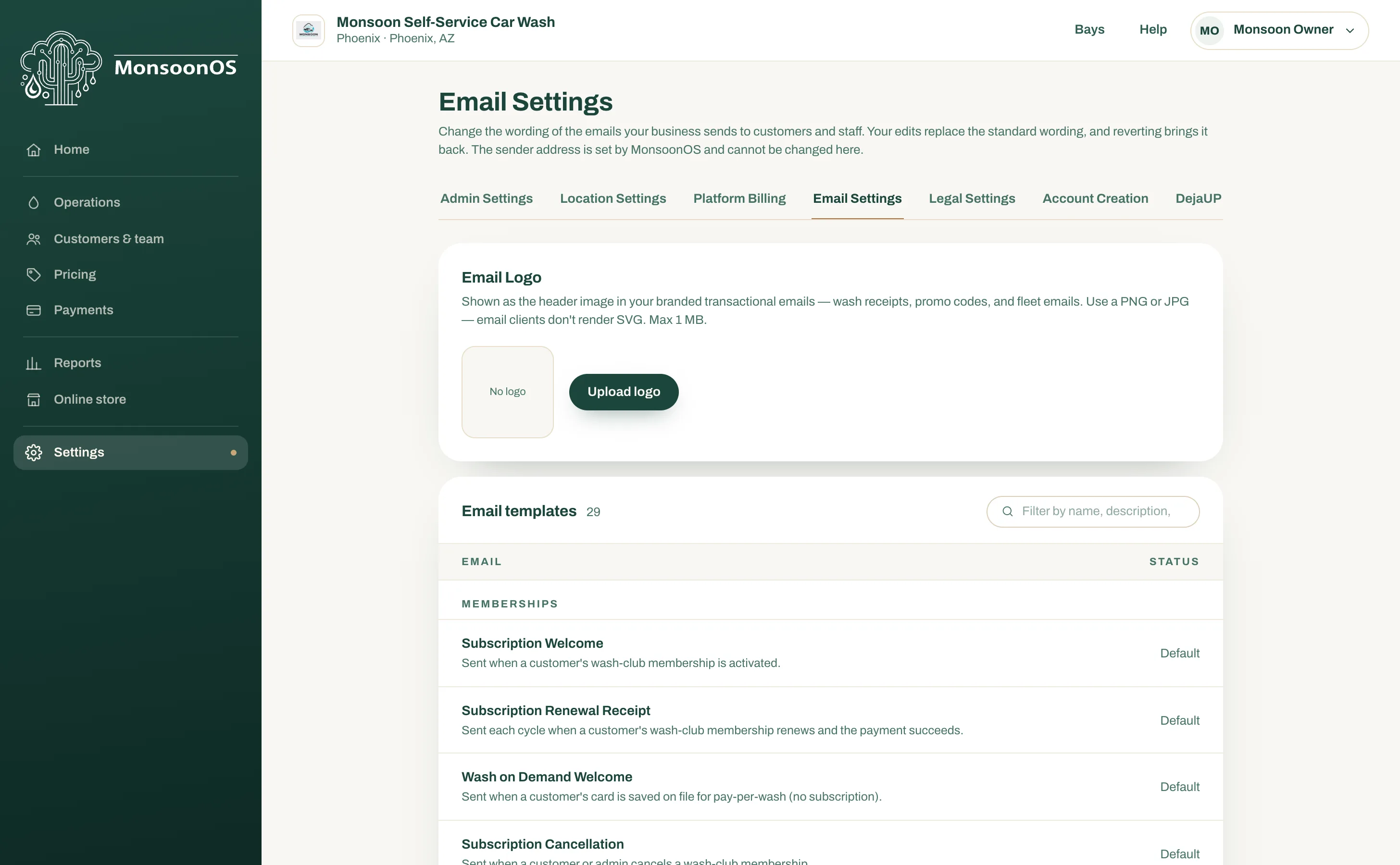
Add your email logo
The email logo is the picture at the top of your receipts, promo code and fleet emails.
- Open Settings › Email Settings.
- Under Email Logo, select Upload logo and choose a PNG or JPG file of 1 MB or less.
To change it, select Replace logo. To take it off, select Remove.
Change an email
- In Email Settings, find the email. Type in the filter box to narrow the list.
- Select the email to open it.
- Edit the parts it offers, such as the subject, intro and closing. To add a detail such as the customer's name, place your cursor and choose it from Insert variable….
- Check the preview on the right. It uses sample data.
- Select Save changes.
The email now shows Customized in the list. Emails you have not changed show Default.
Send yourself a test
On an email's page, select Send test to me. MonsoonOS saves your changes first, then sends the email to your own address with sample data and your logo. Its subject starts with [TEST].
Go back to the standard wording
On the email's page, select Reset to default, then OK. Your changes to that email are removed.