Your Wash Pass and PIN
For fleet drivers: the two emails you get when your company adds you, where to find your Wash Pass QR code, adding it to Apple Wallet or Google Wallet, and changing your 4-digit wash PIN.
- Plans
- Available on every MonsoonOS plan: Full Wash Platform and Rain Pay Terminals Only.
- Needs
- You need Fleet (included on Full Wash, an add-on on Terminals Only).
- Audience
- Written for drivers on a fleet company account.
Your company has an account at the car wash, and you are on it. You wash with two things: your Wash Pass, a QR code that says who you are, and your 4-digit wash PIN. Your washes are billed to your company, never to you.
The two emails you get
When you are added, the car wash sends you two emails:
- A welcome email with a link to set your password. The link works for 7 days.
- An email that shows your 4-digit wash PIN and has your QR code attached. It may also have buttons to add the QR code to Apple Wallet or Google Wallet.
Keep the second email. Nobody at the car wash or your company can look up your PIN, but you can set a new one yourself at any time.
Find your Wash Pass
On the car wash's website:
- Sign in with your email and password.
- Select Fleet in the menu at the bottom of the page.
- Your QR code is under Your Wash Pass.
In the MonsoonOS app, if your car wash has it: sign in and open the Fleet tab. Your QR code is under Your Wash Pass.
When you see Add to Apple Wallet or Add to Google Wallet under the code, tap it to keep your Wash Pass in your phone's wallet, so you can show it without opening anything.
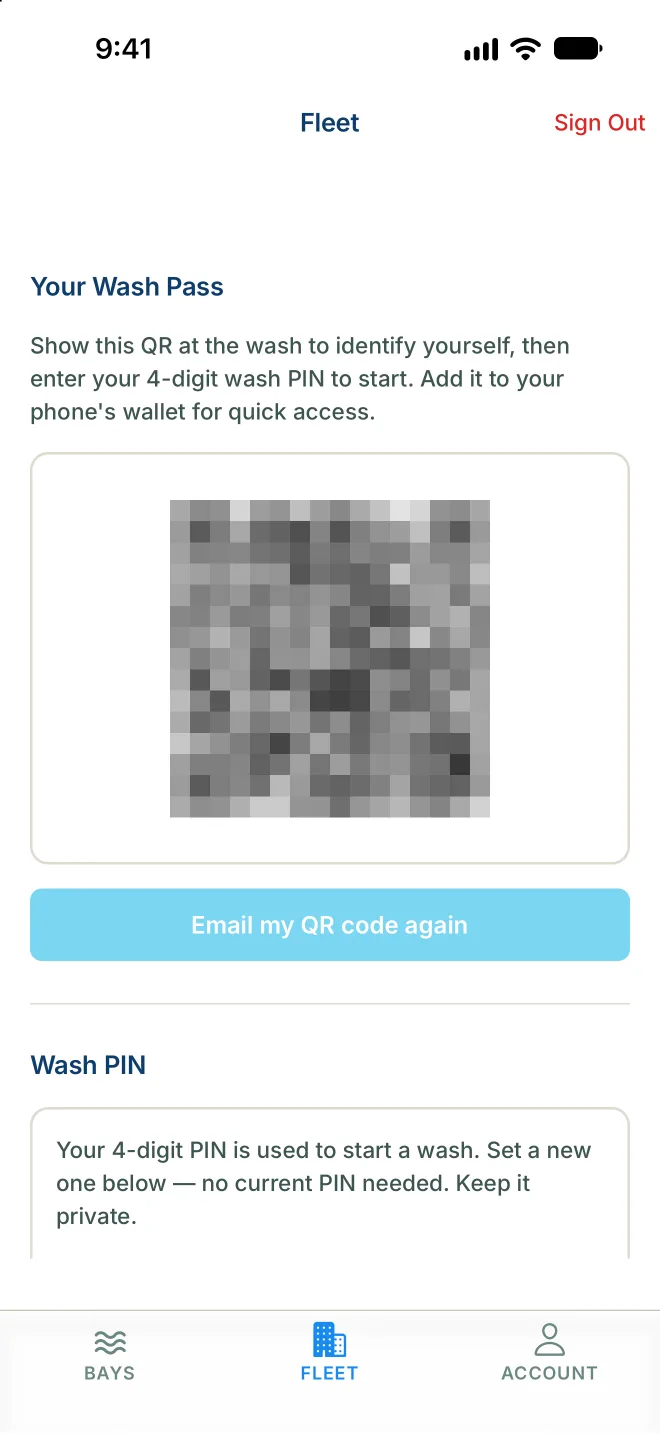
Get the QR code emailed again
On the website, select Resend QR code. In the app, tap Email my QR code again. The email has your QR code only, never your PIN.
Change your wash PIN
You do not need your old PIN.
- Open Fleet on the website or in the app.
- Under Wash PIN, enter 4 digits in New PIN and again in Confirm New PIN.
- Select Update PIN.
You see "Your wash PIN has been updated." Use the new PIN from now on. Keep it to yourself: it is what stops someone else washing on your account with your QR code.
See your own washes
- On the website: My Wash Activity, on the same page, lists your washes for the month you choose under Month, with the date, bay, minutes and amount.
- In the app: under Wash history, tap View wash history.
These amounts are what your company is billed. You are never charged.