Build your in-bay automatic wash menu
Create the washes customers choose from at your in-bay automatics on the MonsoonOS IBA Tier Menu page, each with a price, a description and an optional Most Popular badge.
- Plans
- Available on every MonsoonOS plan: Full Wash Platform and Rain Pay Terminals Only.
- Who can do this:
- On Full Wash, anyone whose role includes "Edit machine prices" (Owner by default). On Terminals Only, your admin login.
An in-bay automatic sells washes from a menu, such as Basic, Deluxe and Ultimate. Each wash on the menu, called a tier, has one flat price. The menu belongs to the location: every in-bay automatic at that location offers the same washes.
Open the page
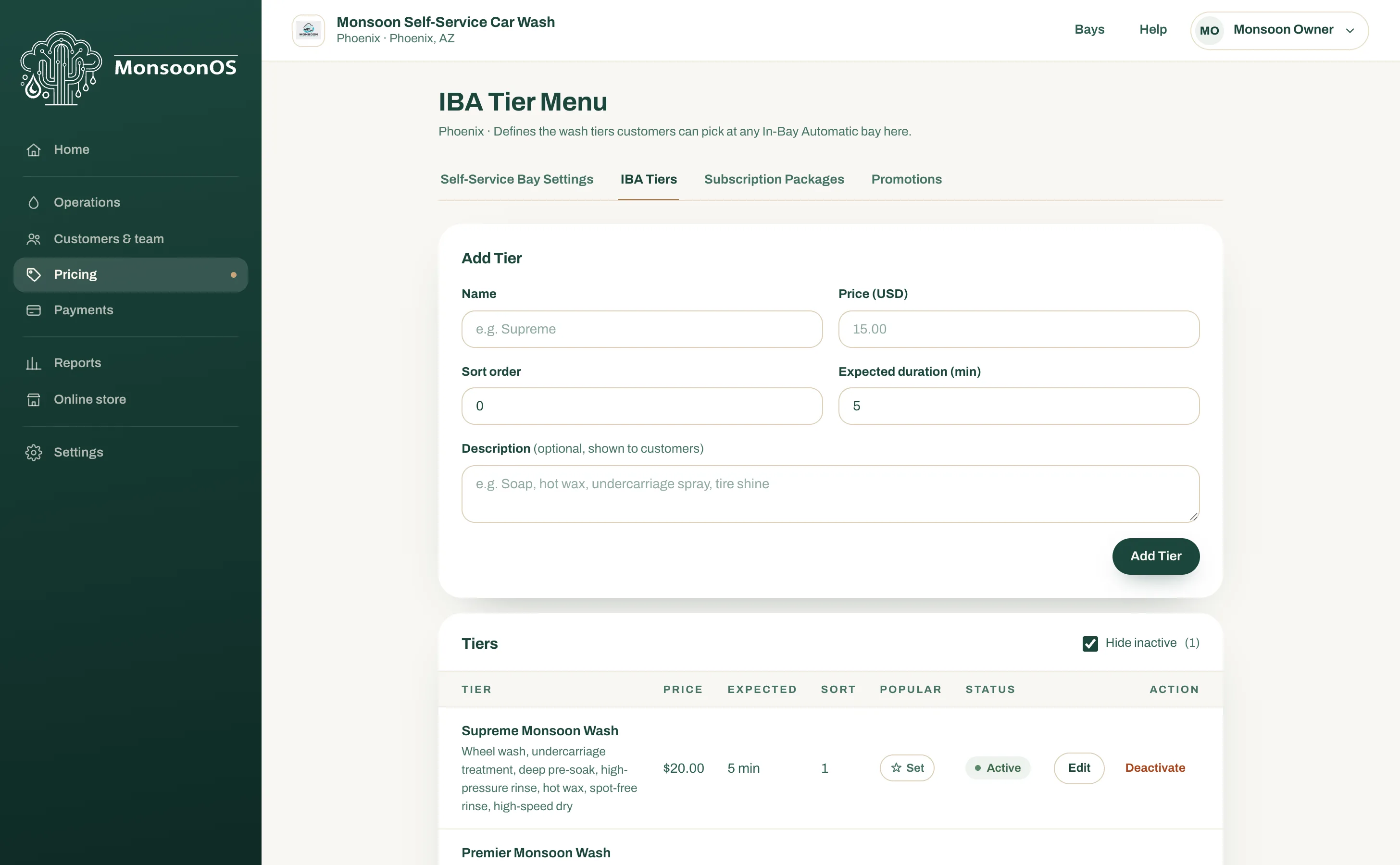
Go to Pricing › IBA Tiers. The tab appears once one of your locations has a machine of the type In-Bay Automatic.
With several locations, choose the location from Location at the top of the page: each location has its own menu. You can also open Settings › Setup Guide, open the In-bay automatic wash menu step, and select Build wash menu next to the location. Once a location has a menu, the button says Review.
The page is called IBA Tier Menu. With one location, its name shows under the title.
Add a wash
- Under Add Tier, type the Name, such as "Ultimate".
- Type the Price (USD).
- Set the Sort order. Washes with lower numbers are listed first.
- Set the Expected duration (min): about how long the wash takes. MonsoonOS shows the bay as in use for about this long.
- Optionally type a Description of what the wash includes, such as "Soap, hot wax, tire shine". Customers see it.
- Select Add Tier.
Repeat for each wash. They are listed under Tiers.
Mark the Most Popular wash
In the Popular column, select Set on one wash. It then shows Most Popular, and Rain Pay terminals show a Most Popular badge on it. Only one wash per location can be Most Popular, so setting another one moves the badge. Select Most Popular again to remove it.
Change or turn off a wash
- To change a wash, select Edit on its row, change the name, description, price, expected time or sort order, then select Save.
- To stop selling a wash, select Deactivate and confirm. Customers stop seeing it at this location right away.
- To sell it again, untick Hide inactive so turned-off washes show, then select Reactivate.
A new wash cannot reuse the name of one you turned off, so reactivate the old one instead.
Link each wash to the bay
Each wash also has to be linked to each in-bay automatic, under IBA Tier Relays on that bay's Configure Stormbox page. Your installer does this when the bay is set up. A wash that is not linked cannot be chosen at that bay. When you add a wash later, ask your installer to link it, or email support@cactuswashsystems.com.
If your in-bay automatic keeps its own pay station, your installer can also link the pay station's wash buttons. Pressing a button then opens the card screen for that wash. After your installer changes a button, ask MonsoonOS support to send the Stormbox its new settings.
Menus managed by the pay station
If every in-bay automatic at the location takes its menu from its own pay station, the page shows Managed by the pay station instead of Add Tier. The washes come from the pay station's menu, and you add or change washes there. You can still change the prices and details of the washes listed here.
Related
- Test a new wash from the bay's Configure Stormbox page with Test Wash Start, which starts a real wash. See Bring a Stormbox online.
- Collect sales tax on washes