Change a plan's price or move its members
Edit a Wash Club plan, give its members a new price by moving them to another plan, stop new sign-ups and retire a plan in MonsoonOS Subscription Packages, on the Full Wash Platform.
- Plans
- Available on the Full Wash Platform only. Rain Pay Terminals Only does not include it.
- Who can do this:
- On Full Wash, anyone whose role includes "Edit membership plans" (Owner by default).
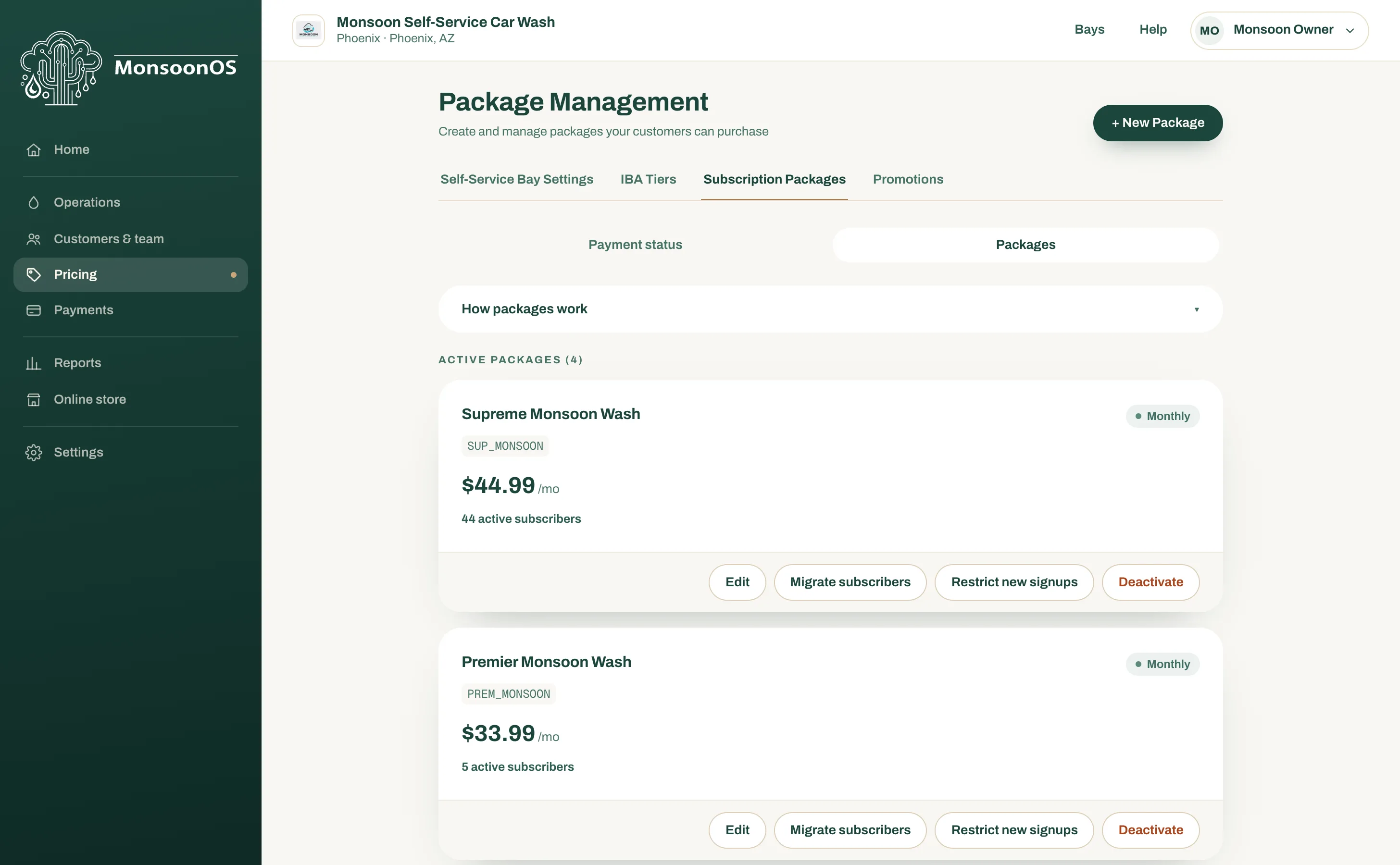
Every Wash Club plan has a card in Pricing › Subscription Packages. The card shows the price, how many active subscribers the plan has, and the buttons this article uses: Edit, Migrate subscribers, Restrict new signups and Deactivate.
Edit a plan
- On the plan's card, select Edit.
- Make your changes.
- Select Update Package.
What you can change depends on whether the plan has members, meaning the card shows at least one active subscriber:
| On the form | No members yet | Has members |
|---|---|---|
| Package Name, SKU, Description, Sort Order | Can change | Can change |
| Price | Can change | Locked |
| The rows of what the plan includes (car wash plans, and dog wash plans with Use entitlements ticked) | Can change | Locked |
| Use entitlements (mix machine types in one plan) | Can change | Locked |
| Washes Per Period and Per Wash Duration (dog wash plans) | Can change | Can change, and current members get the change too |
| Type and Billing Interval | Cannot change | Cannot change |
Members renew at the plan's price, so once a plan has members its price is locked. The form shows locked fields greyed out. To give members a new price or new terms, move them to a new plan, as described next.
A change to Washes Per Period or Per Wash Duration reaches the members already on the plan, so tell them before you make it.
Give current members a new price or new terms
Create a plan with the new price or terms, then move the members onto it. Each member moves at the end of their current billing period, nothing is charged that day, and each one gets an email telling them the new plan, price and date.
- Create the new plan. See Create a Wash Club plan.
- On the old plan's card, select Migrate subscribers.
- A box lists your other active subscription plans that take new sign-ups, each with a number. Type the number of the plan to move members to, then select OK.
- Read the confirmation and select OK.
A message at the top shows how many members were scheduled, for example "Scheduled 12 subscribers for migration." Members who had already scheduled a plan change of their own are skipped, and the message says how many.
In the app, each moved member sees Plan change scheduled in their Wallet with the new plan, its price and the date. They can still cancel their membership before then.
When the old plan has no members left, you can retire it, as described below.
Stop new sign-ups for a plan
Use this when you want to phase a plan out but keep the members already on it.
- On the plan's card, select Restrict new signups.
- Select OK.
The card shows New signups restricted. Members on the plan keep billing and washing as before. New customers, and members changing plans, no longer see it, and you cannot move members into it. To show it again, select Allow new signups.
Retire a plan
When no active members are left on a plan, select Deactivate. The plan moves to Inactive Packages and customers can no longer choose it.
Members who canceled but are still inside their paid period count as active until that period ends. Members you moved with Migrate subscribers stay on the old plan until their move date.
To bring a plan back, select Reactivate on it under Inactive Packages, then OK. A plan that had new sign-ups restricted stays restricted until you select Allow new signups.
Related
- To charge a different price at one location, see Set a different plan price at one location.
- To cancel one customer's membership, see Block a customer or cancel a membership.