Build a custom role
Create your own MonsoonOS role from individual permission switches when Owner, Manager and Staff do not fit, and what Sensitive switches mean.
Full Wash
- Plans
- Available on the Full Wash Platform only. Rain Pay Terminals Only does not include it.
- Who can do this:
- On Full Wash, anyone whose role includes "Manage roles" (Owner by default).
A custom role is a set of permission switches you choose and name yourself, such as "Bookkeeper" or "Shift lead". You can have up to 25 roles.
Create the role
- Go to Customers & team › Team and open Roles.
- Under New role, pick a starting point:
- Start from scratch: every switch off.
- Start from a template: a ready-made role such as Attendant.
- Copy a role: an existing role's switches. The copy gets " copy" added to its name.
- Enter the Name and What this role is for.
- For each area, choose No access, View only or Everything, or open the area and flip single switches.
- Check the summary beside the editor: People with this role can and They can't use.
- Select Save role.
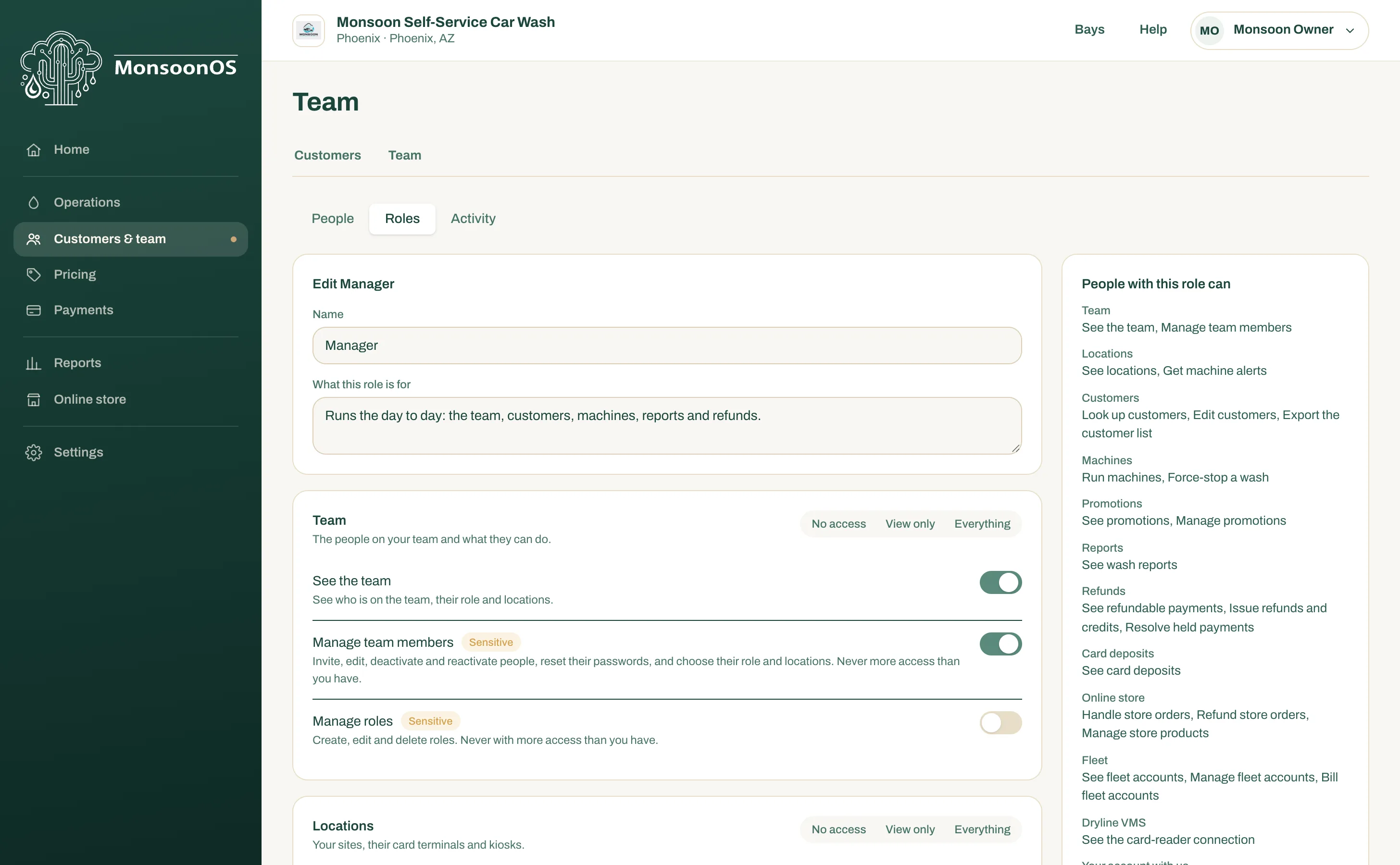
- Name and What this role is for.
- Set a whole area to No access, View only or Everything.
- A Sensitive switch.
- People with this role can: the summary updates as you switch.
Sensitive switches
Switches that touch money, people, sign-in details, private data or deleting things carry a Sensitive tag. When you save a role with a Sensitive switch newly on, MonsoonOS asks Give these sensitive permissions? and tells you The owners get an email about it. Select Yes, save to go ahead.
Compare and tidy up
- Compare roles shows every role side by side, switch by switch.
- Edit opens a role; View opens a role you cannot change.
- Delete role removes a role nobody holds. If people hold it, Move and delete asks which role they move to first.
Rules
- You can only switch on what your own role has.
- Areas your plan does not include are not shown.
- Turning on a switch that needs another (managing needs seeing, for example) turns that one on too.
Give the role to people on the People tab. See Invite and remove team members.