Washing with Fleet Wash
For fleet drivers: how to start a wash on your company's account at the kiosk with your QR code and wash PIN, or in the MonsoonOS app at a Full Wash site, without paying.
Every planFleet
- Plans
- Available on every MonsoonOS plan: Full Wash Platform and Rain Pay Terminals Only.
- Needs
- You need Fleet (included on Full Wash, an add-on on Terminals Only).
- Audience
- Written for drivers on a fleet company account.
A fleet wash is billed to your company. Nothing is charged to a card and you never pay at the bay. You need your Wash Pass QR code and your 4-digit wash PIN. If you do not have them yet, see Your Wash Pass and PIN.
At the kiosk
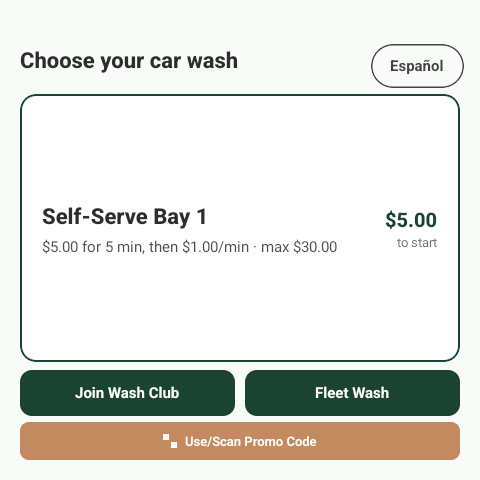
- On the kiosk at your bay, tap Tap to Start.
- On the wash list, tap Fleet Wash.
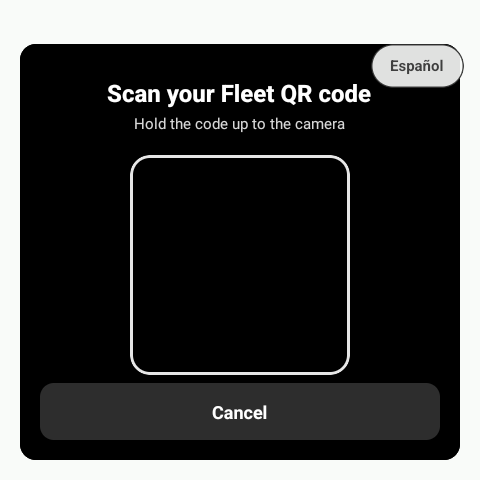
- Hold your Wash Pass QR code up to the camera, on your phone, in your phone's wallet or printed.
- Enter your 4-digit wash PIN.
- At a self-serve bay, tap Start wash. At an in-bay automatic, tap Continue, then choose your wash.
- At a self-serve bay, the screen shows Fleet wash with your company's name while the bay runs. Tap STOP when you are done. At an in-bay automatic, follow the bay's instructions.
The last screen shows Wash recorded to and your company's name. That is your receipt: nothing was charged.
For what each kiosk screen looks like, see What customers see on the kiosk.
In the app or on the website
At a car wash on the Full Wash Platform, you can also start a wash from your phone.
- Sign in to the MonsoonOS app, or to the car wash's website.
- Open Bays and start the bay you are at, as any customer would. See Start and stop a bay in the app.
- When Enter your wash PIN appears, enter your 4-digit PIN.
- Tap Start wash.
The app asks for your PIN every time you start a wash. Nothing is charged to a card.
If something goes wrong
| You see | What to do |
|---|---|
| That isn’t a fleet QR code. | You showed a different code, such as a promo code. Show your Wash Pass. |
| That fleet code isn’t recognized. | The code is not active at this car wash. Ask your Fleet Admin whether you are still on the account. |
| The PIN is incorrect, with the tries you have left | Enter it again carefully. If you forgot it, set a new one. See Your Wash Pass and PIN. |
| Too many attempts. Please try again in a few minutes. | Wait a few minutes, then try again with the right PIN. |
| No wash PIN is set for this member yet. | Sign in and set a PIN under Wash PIN. |
| This bay is currently in use. | Wait, or use another bay. |
| This bay is temporarily unavailable. | Try another bay and tell the car wash. |
| This fleet account isn’t active. Ask your Fleet Admin. | The car wash has turned off your company's account, so nobody on it can wash. Ask your Fleet Admin. |
| The kiosk says it can't scan your code right now | The camera is not working. Try another bay, or ask the car wash for help. |
| Something went wrong. Please try again. | Try again. If it keeps happening, try another bay or ask the car wash for help. |
| Account inactive on the Fleet page | Your company's account is off. Ask your Fleet Admin. |