Edit your location details
Change each location's name, address, phone number and opening hours on the MonsoonOS Location Settings page, copy a location's sign-up link, and find out how a new location is added.
- Plans
- Available on every MonsoonOS plan: Full Wash Platform and Rain Pay Terminals Only.
- Who can do this:
- On Full Wash, anyone whose role includes "Add and edit locations" (Owner by default). On Terminals Only, your admin login.
Each of your locations has its own name, address, phone number and opening hours in the MonsoonOS admin. Keep them accurate. MonsoonOS uses a location's state to set its time zone, so reports count each day from local midnight, and it uses the address to look up the sales tax rate when you collect tax on washes.
Edit a location
- Open Settings › Location Settings. There is one card for each of your locations.
- On the location's card, change the fields you need. Each field is described below.
- Select Save.
Saved. appears next to the button when the change is stored.
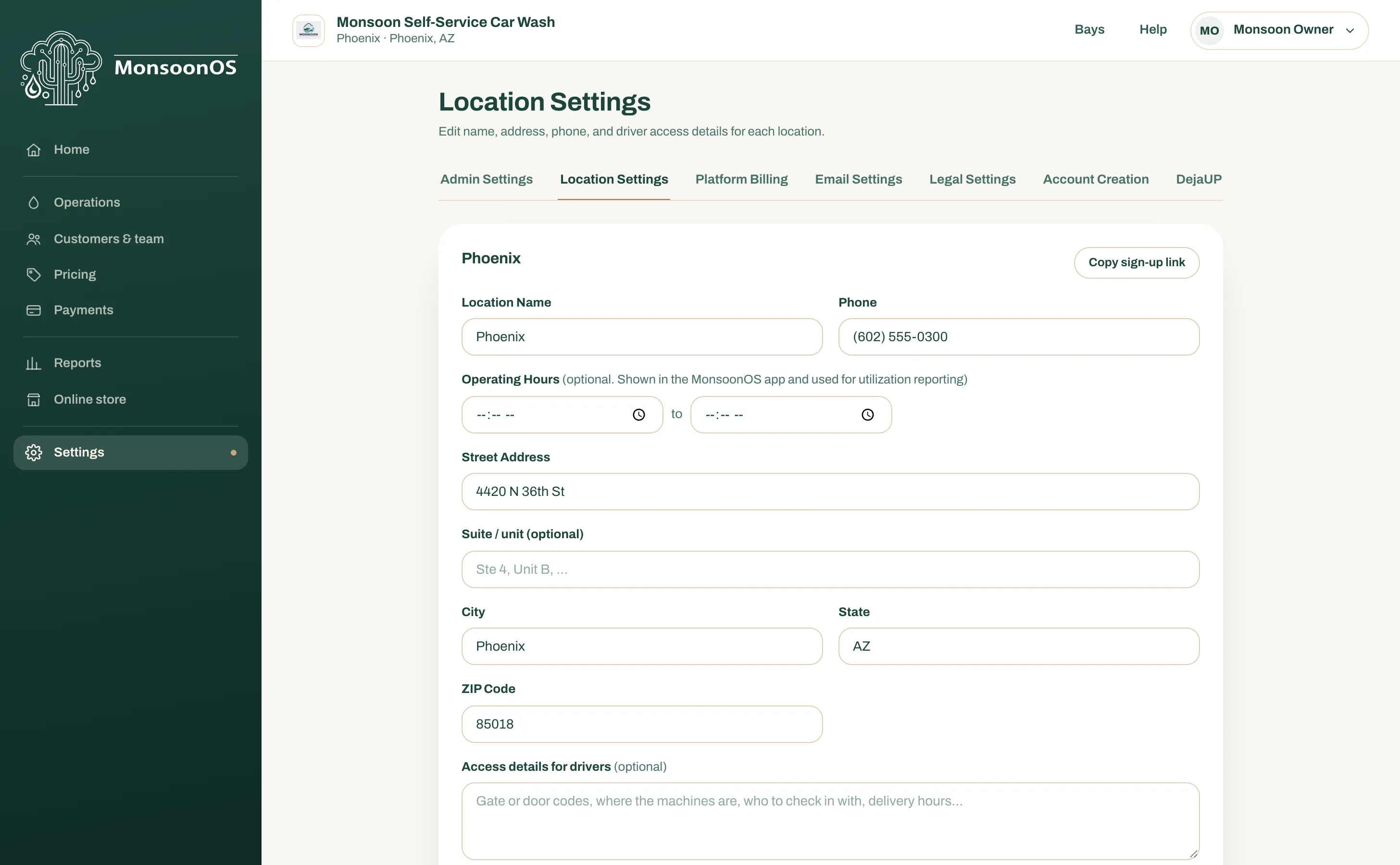
The fields
| Field | What it is |
|---|---|
| Location Name | The name used for this site across MonsoonOS. |
| Phone | The location's phone number. |
| Operating Hours | Optional opening and closing times. On the Full Wash Platform the MonsoonOS app shows them under your wash's name. Reports use them to work out how busy your machines are while you are open. Leave them blank and the app shows no hours. |
| Street Address | Start typing and pick a suggestion to fill in the city, state and ZIP code for you. |
| Suite / unit (optional) | A suite or unit number, if the site has one. |
| City, State, ZIP Code | The rest of the address. |
| Access details for drivers | Optional. Shown only to route drivers in the Dryline VMS app. Leave it blank if you do not use Dryline VMS. |
| Payment Merchant ID | Read-only. The merchant number shared by every payment terminal at this location. We fill it in when your card processing is set up. |
How the address is checked
When you save, MonsoonOS checks the address with USPS.
- Address verified with USPS under the card means it matched.
- If USPS suggests a different version, a box shows You entered and USPS suggests side by side. Select Use suggested address to take the USPS version, or Edit address to go back and fix what you typed.
- If USPS cannot confirm the address, which is common for a new building, the card shows why and offers Save anyway (mark as unverified). The card then says Saved without USPS verification.
The card also says whether the map customers see in the MonsoonOS app (on the Full Wash Platform) found the address. If it shows a warning that it could not locate this address, check the street and ZIP code, then select Retry.
Copy a location's sign-up link
On the Full Wash Platform, each location has its own sign-up link. Customers who choose their Wash Club plan from it join at that location and pay its prices. See Set a different plan price at one location.
- Open Settings › Location Settings.
- On the location's card, select Copy sign-up link. The button shows Copied!.
- Send the link to the customer, for example by email or text, or put it behind a QR code at that location.
A customer who opens the link is asked to sign in, or to create an account, and then chooses their plan at that location's prices. The link works on your website. A customer who joins in the MonsoonOS app pays the standard price.
Add a new location
You cannot add a car wash or dog wash location yourself. Buy the site in the Cactus Wash Shop (Settings › Cactus Wash Shop), or email support@cactuswashsystems.com. Your MonsoonOS team adds the location and connects its card processing, and it then appears on this page. See What your MonsoonOS team sets up for you and The Cactus Wash Shop.
The rest of a location's setup
Machines, terminals and prices are set for each location, each on one page for all your locations. With several locations, choose the location from Location at the top of Operations › Machines, Operations › Terminals or a Pricing page.