The fleet portal
For a fleet company's Fleet Admin, the MonsoonOS fleet portal where you add and remove your employees, see your invoices, keep a card on file and check your team's washes.
- Plans
- Available on every MonsoonOS plan: Full Wash Platform and Rain Pay Terminals Only.
- Needs
- You need Fleet (included on Full Wash, an add-on on Terminals Only).
- Audience
- Written for the admin of a fleet company account.
Your car wash set up an account for your company and made you its Fleet Admin. The fleet portal is where you run that account: your team, your bill and your team's washes.
Open the portal
- Open the set-password email from the car wash and set your password. The link works for 7 days.
- Sign in on the car wash's website with your email and new password.
- Select Fleet in the menu at the bottom of the page.
If your car wash has the MonsoonOS app, you can also open the Fleet tab in the app and tap Open Fleet Management.
The portal starts with three sections about you, because you can wash on the account too: Your Wash Pass, Wash PIN and My Wash Activity. See Your Wash Pass and PIN. Below them are three sections only Fleet Admins see: Team, Billing and Wash Activity.
Add an employee
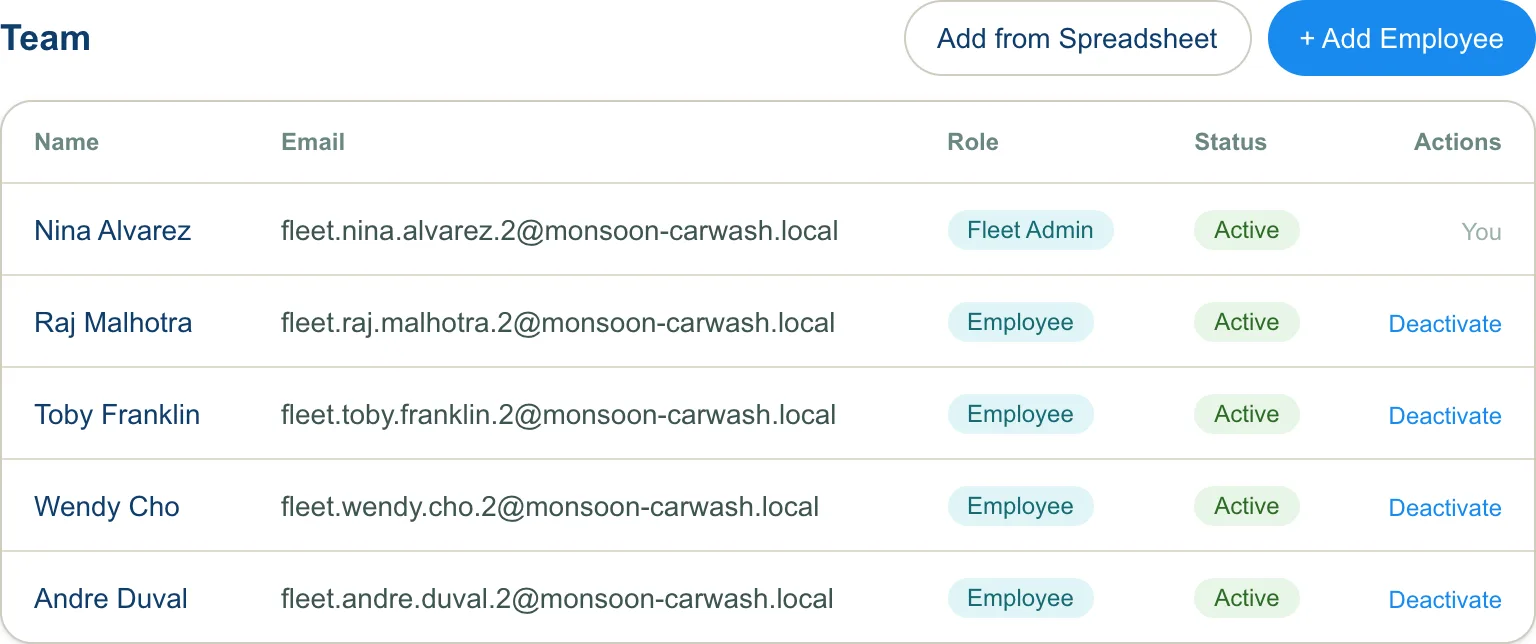
- Under Team, select + Add Employee.
- Enter their First Name, Last Name and Email. Phone is optional.
- Select Add Employee.
They get two emails: one to set their password, and one with their 4-digit wash PIN and QR code. Point them to Your Wash Pass and PIN.
You can add employees only. To add another Fleet Admin, ask the car wash.
Add many employees from a spreadsheet
- Under Team, select Add from Spreadsheet.
- Select Download the template, or use your own list: an Excel file (.xlsx) or a CSV with one person on each row, up to 500 at a time.
- Under Your file, choose the file.
- Check that each column was matched, or select Change and pick them. You need an Email column, and either First name and Last name or one Full name column.
- Select Continue, review who will be added, then select the Add button with the number of people.
- Keep the page open until it says Finished, then select Done.
Everyone added from a spreadsheet joins as an Employee. Anyone already on your team is skipped, so you can fix a row and upload the same file again.
Remove an employee
On the employee's row under Team, select Deactivate. They can no longer start washes on your account. Select Reactivate to let them wash again.
Your own row says You. Fleet Admin rows have no button, because the car wash manages Fleet Admins.
Billing
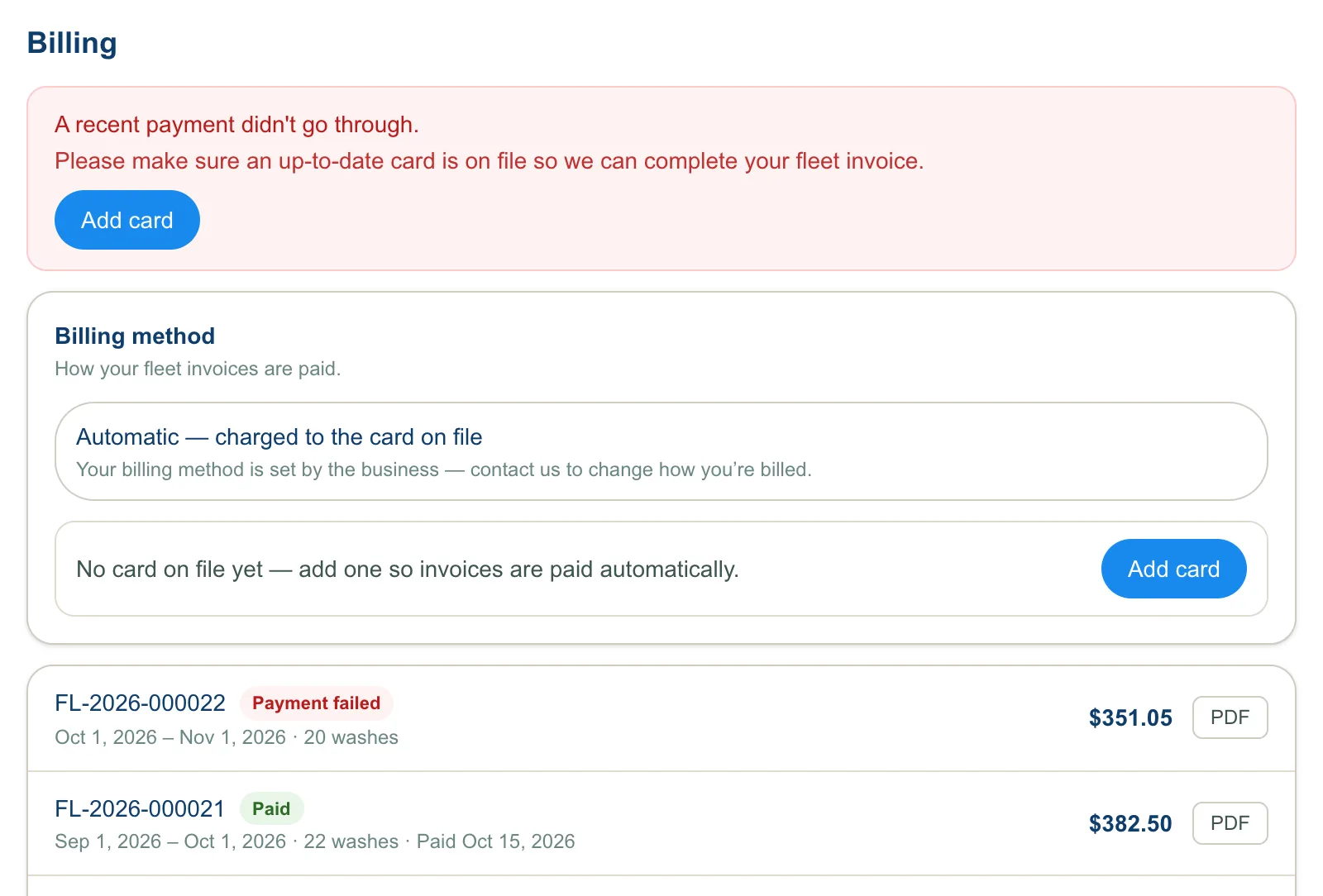
The Billing method box shows how your invoices are paid. The car wash sets this. To change it, contact the car wash.
- Manual, by emailed invoice: each month's invoice is emailed to you to pay by its due date.
- Automatic, charged to the card on file: each month's invoice is charged to your card.
Add or update your card
On automatic billing, the box shows your card on file, or says there is none yet.
- Select Add card, or Update card if one is on file.
- Enter the card in the Add a card on file form.
- Select Save card.
You see "Card saved. Future invoices will be charged automatically."
In the app, tap Add card or Update card under Billing and enter the card on the Save a card page that opens. On Manual billing there is no card to add, on the website or in the app.
If the car wash emailed you a link to save a card, open it and enter the card there. It does the same thing.
Your invoices
Each invoice shows its number, its status, the dates it covers, the number of washes and the total, with Due or Paid and a date. Select PDF for the itemized copy. Past due means the invoice could not be collected; contact the car wash to settle it.
Your team's washes
Wash Activity lists every wash your team took in the month you choose under Month: the date, the member, the bay, the minutes, the amount and whether their PIN was used. Void marks a wash that cost nothing.
If the portal says Account inactive
The car wash has deactivated your company's account. Nobody on it can start washes or open the portal. Contact the car wash. Any final invoice can still be paid from its emailed link.