The Admin tab
What the Admin tab of the MonsoonOS app offers on the Full Wash Platform, area by area, laid out like the MonsoonOS web admin, and why each person sees only the areas their role allows.
- Plans
- Available on the Full Wash Platform only. Rain Pay Terminals Only does not include it.
The Admin tab of the MonsoonOS app is the MonsoonOS admin on your phone: the same areas, in the same order, with the same names as the web admin. It uses the same permissions too, so an area or a tab appears only if your role includes what that page needs. The phone and the web share the same data: a change made on one shows on the other.
If you do not have the app yet, see Get the phone app.
Getting around
- The menu button at the top left opens the menu: Home, then each area you can open. On an iPad the menu stays open at the side.
- Each area has its pages as tabs across the top, for example Customers and Team in Customers & team. Swipe the tabs sideways when they do not all fit.
- Your account button at the top right shows who you are signed in as, and Sign out.
The Admin tab wears the MonsoonOS colors. A business on its own web address sees the same layout in its own brand colors. Everything your customers see in the app keeps your brand.
Home
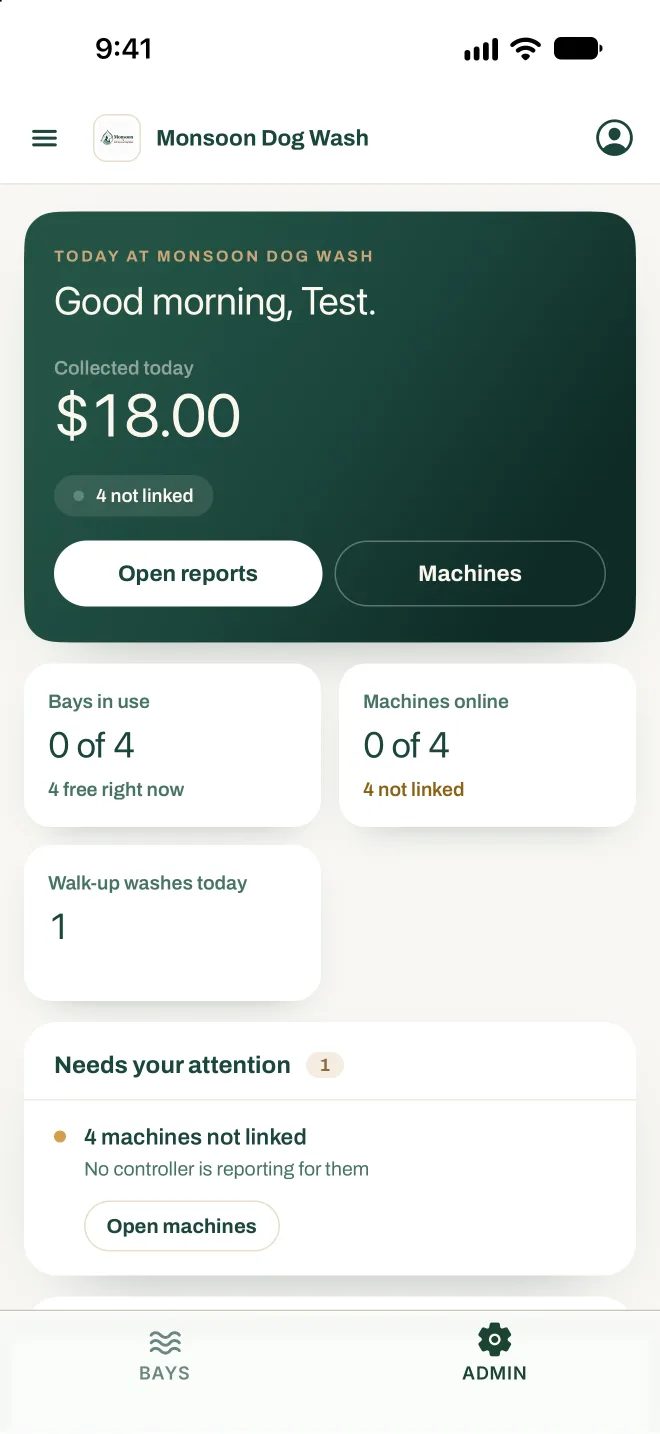
- Today at your business, with what you have collected today and whether every machine is online. Open reports and Machines jump straight there.
- Tiles for Bays in use, Machines online, Walk-up washes today and Open store orders, when your role can see them.
- Needs your attention: offline machines, machines not linked, and store orders that need a shipping label, each with a button to the fix.
- Revenue for Today, 7 days or 30 days, split into subscriptions, wash on demand and walk-up.
- Work areas: each area you can open, with one live line such as how many machines are online.
- With several locations, a Locations card for each one. Tap a card to open Machines for that location.
Choosing a location
On a page that works per location, a location button sits under the page title. On lists (Machines, Customers, Team) it starts at All locations. On Self-Service Bay Settings it always shows one location. With a single location there is nothing to choose, so the button is not shown.
The areas
| Area | Pages | Shows for roles with |
|---|---|---|
| Operations | Machines: Add Machine; Edit a machine's name and photo; Lock it and tap again to release it; Configure its Stormbox: the bay's timer and the relay it is wired to; Delete it. | See machine setup |
| Fleet Management: add a fleet company, edit its details and billing, Deactivate account or Reactivate account, add members, and work its invoices (Resend, Retry charge, Mark paid, Void, Send card-setup link). Dog washes see Pack Management. | See fleet accounts | |
| Customers & team | Customers: look up customers by status; Add Customer; restrict a customer or cancel a membership. | Look up customers |
| Team: Add Employee to invite someone; change their role, and their locations if you use your own roles; deactivate them; reset their password. | See the team | |
| Pricing | Self-Service Bay Settings: Initial Time (minutes), Max Time (minutes), Initial Cost and Overage Per Minute (more than $0.00, starting at $1.00) for one location, the same prices as the web page. | Edit machine prices |
| Subscription Packages: see your Wash Club packages and add one with New Package. | Edit membership plans | |
| Promotions: + Create Promotion, see redemptions, and find a customer to Issue free wash or Issue credit. | See promotions | |
| Payments | Payment Settings: your card processing status. | Payment settings |
| Reports | Revenue for 7D, 30D, MTD, QTD, YTD or a Custom range: daily revenue, revenue mix, locations, top bays, recent transactions and failed payments, with an Excel download. | See wash reports |
| Online store | Orders: see and update store orders. | Handle store orders |
| Inventory: add products with New Product and manage their photos. | Manage store products | |
| Shippo Settings: whether your shipping connection is working. | Store and shipping settings | |
| Settings | Admin Settings: Contact Info, Registration, your own Admin Account, your Logo and Brand Colors, and Recent Sessions. | Business settings |
| Location Settings: Edit each location's name, address and phone. | Add and edit locations |
If your business also runs Dryline vending machines, Dryline VMS in the menu opens the vending screens.
Inside a page, each change needs the same permission it needs on the web, and its button shows only when your role includes it. For example, adding a machine needs Set up machines, inviting someone needs Manage team members, adding or deactivating a fleet company needs Manage fleet accounts, and fleet billing settings and invoice actions need Bill fleet accounts.
Some pages are not in the app at all, such as Terminals and Refunds & Credits. See What needs the web admin.