A tour of the admin home
The MonsoonOS admin home and the menu on the left, what each area of the menu holds, and why yours may show more or fewer areas and tabs than someone else's.
- Plans
- Available on every MonsoonOS plan: Full Wash Platform and Rain Pay Terminals Only.
The admin home is the first page you see after signing in. The menu on the left takes you to every part of the admin, and the home itself shows how today is going.
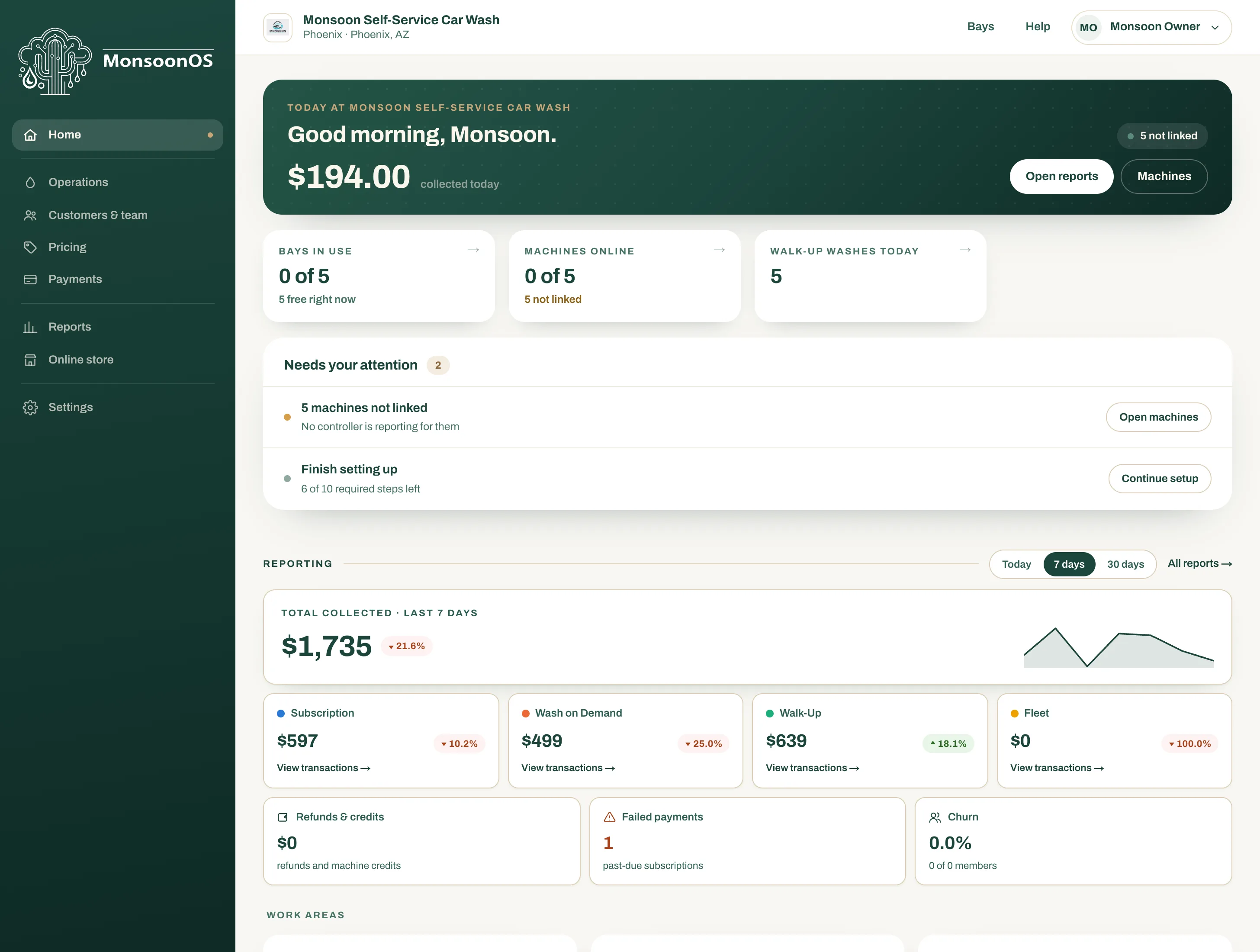
- The menu: Home and each area of the admin.
- Bays opens the live bays page, and Help opens this guide.
- What came in today, with Open reports and Machines.
- Bays in use, machines online and walk-up washes today.
- Needs your attention: what to look at next.
- Today, 7 days and 30 days change the reporting figures.
The menu
Each area of the menu opens its first page. The other pages of that area are tabs across the top of the page. In this guide, a path such as Pricing › Promotions means: select Pricing in the menu, then the Promotions tab. On a phone, open the menu with the button at the top left.
| Area | Its tabs |
|---|---|
| Operations | Machines, Terminals and Fleet Management (when you have Fleet) |
| Customers & team (Full Wash) | Customers and Team |
| Pricing | The pricing page for each kind of machine you have (Self-Service Bay Settings, IBA Tiers, Vacuum Settings, Dog Wash Settings), Subscription Packages (Full Wash) and Promotions |
| Payments | Refunds & Credits, Held Payments and Card Deposits (once your card deposit account is set up) |
| Reports | Reports |
| Online store (Full Wash) | Orders, Inventory, Store Settings and Shippo Settings |
| Settings | Admin Settings, Location Settings, Platform Billing, Email Settings, Legal Settings and Account Creation (Full Wash), DejaUP Connection (when you have MDB card readers), QuickBooks (with the add-on), Cactus Wash Shop and the Setup Guide |
Dog washes see Pack Management in place of Fleet Management. A business that also runs Tip Box or Dryline vending sees those areas too.
Admin Settings is where you set your logo and brand colors, your business contact details, tax settings, and your own admin email and password.
The top bar
Your business name sits at the top of every page. On the right:
- Bays (Full Wash Platform) opens the live bays page, where your team sees what is running and uses Emergency Stop and Force Stop. It shows when your role can run machines or force-stop a wash. See Lock, unlock and force-stop a machine.
- Help opens this guide, showing your plan.
- Your name opens a menu with Sign out.
The home
From top to bottom:
- The green band shows what came in today, with Open reports and Machines.
- The tiles show bays in use, machines online and walk-up washes today. Select a tile to open its page.
- Needs your attention lists what to look at next, such as machines that are not reporting or setup steps left, each with a button that opens the right page.
- Reporting shows what came in by stream, with refunds, failed payments and churn. Today, 7 days and 30 days change these figures; they do not change any settings. All reports opens Reports.
- Work areas has a card for each area of the menu, with a live note such as how many machines are online.
Why your admin may look different
The admin only shows what you can use:
- Your plan. Terminals Only does not show Customers & team or Online store, or Subscription Packages.
- Your equipment. A pricing page appears only when you have that kind of machine. DejaUP Connection appears only when you have an MDB card reader.
- Your role (Full Wash). An area or tab appears only if your role includes its permission. A Staff member sees far fewer than an Owner.
This is the same home on Terminals Only:
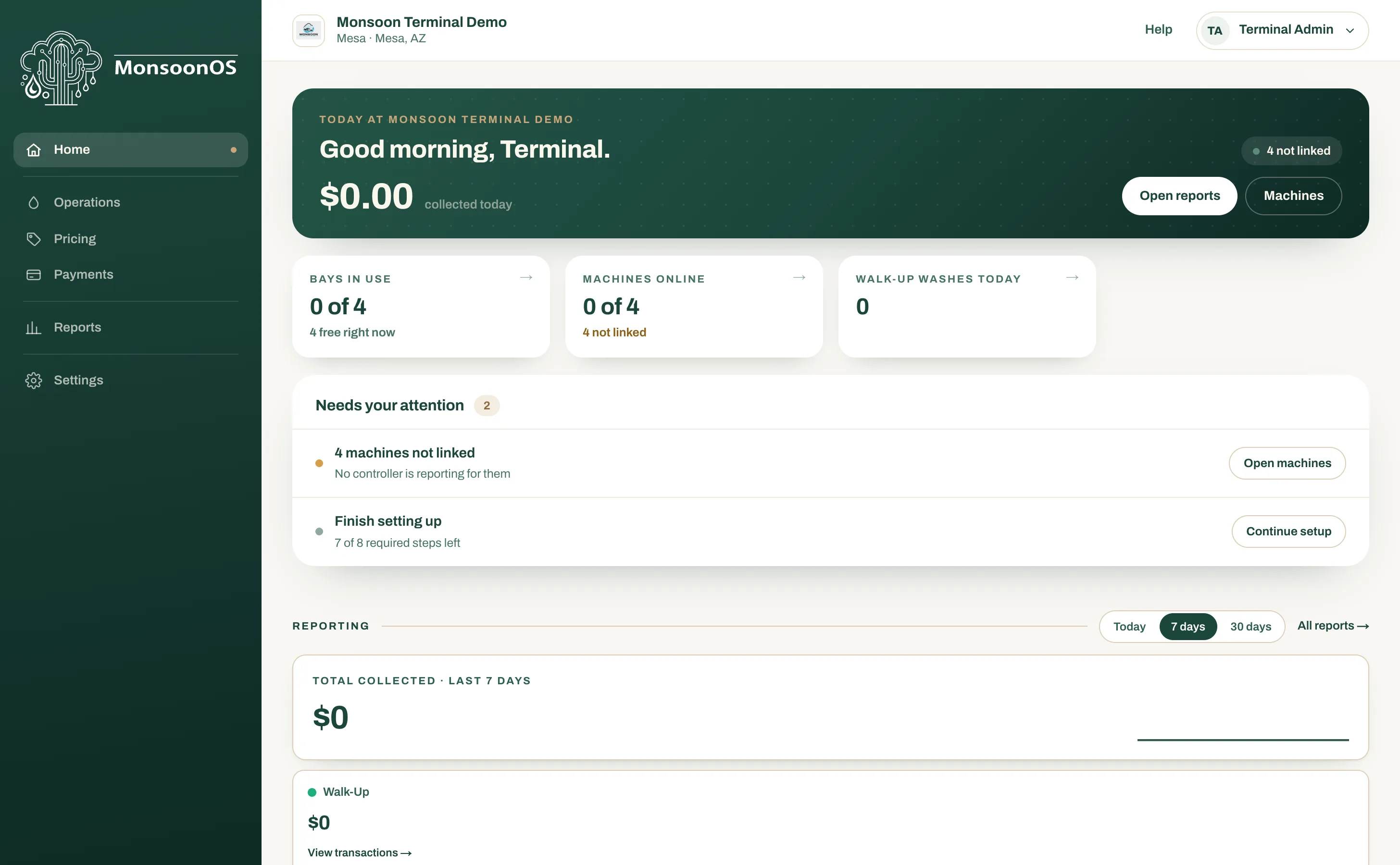
If a page you need is missing, check Which plan do I have? and ask your owner to check your role.
One location or several
Every page in the menu is one page for all your locations, so there is only one place to make each change.
- One location: the pages show that location.
- Several locations: where something is set for each location, such as prices, terminals and employee time, choose the location from Location at the top of the page. Lists such as Machines, Customers and Team show every location, and Location narrows them to one. The home ends with a Locations section: select a location to see its machines. The reporting on the home has a location picker, set to All locations at first.
The phone app
Owners and staff can also run much of this from the Admin tab of the MonsoonOS phone app. Pairing terminals, Held Payments, Refunds, QuickBooks and the role editor stay on the web.