Pair an Experience terminal
Add a Rain Pay Experience terminal on the MonsoonOS Terminals page and pair it with a one-time code so it can sell washes at a bay.
Every planExperience terminal
- Plans
- Available on every MonsoonOS plan: Full Wash Platform and Rain Pay Terminals Only.
- Needs
- You need a Rain Pay Experience terminal (shown in the admin as a Wash terminal).
- Who can do this:
- On Full Wash, anyone whose role includes "Pair card terminals and kiosks" (Owner by default). On Terminals Only, your admin login.
Pairing connects a Rain Pay Experience terminal to one of your locations, and to a bay if you choose one. You add the terminal in the admin, get a one-time code, and type the code on the terminal.
Before you start
- The terminal mounted and powered on, showing Pair this terminal.
- Its serial number, printed on the label on the back of the terminal and on its box.
- The machine it serves already added in Machines, if you want it tied to one bay.
Add the terminal in the admin
- Go to Operations › Terminals. With several locations, choose the location from Location at the top of the page.
- Select Add Terminal.
- For Device type, choose Wash terminal.
- Enter the Serial number from the terminal's label.
- Choose the Terminal TPN. Your MonsoonOS team sets these up for each location with your card processing.
- Choose the Model that matches your terminal.
- Under Bay (optional), choose the bay this terminal sits beside. Choose Shared kiosk (customer picks a bay) if one terminal will serve several bays. See Bay terminals and shared kiosks.
- Optionally add a Label (optional), such as "Bay 3 wall", so you can tell terminals apart.
- Select Create + get code.
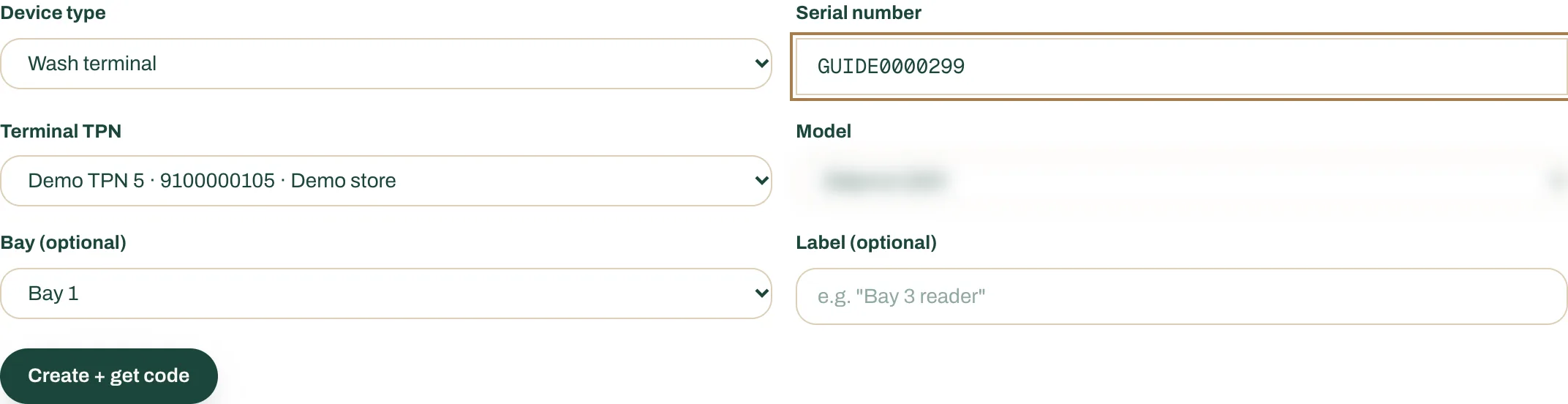
- Device type: Wash terminal.
- The Serial number from the terminal's label.
- A Terminal TPN from the list.
- The Model that matches your terminal.
- The bay, or Shared kiosk (customer picks a bay).
- Create + get code.
A green box shows your Enrollment code and says it is valid for 24 hours. It is shown only once, so copy it now or keep the page open.

Pair the terminal
- At the terminal, on Pair this terminal, type the code into the ENROLLMENT CODE field.
- Select Pair terminal.
- The terminal loads your prices and shows Tap to Start.
Back in the admin, the terminal's row shows its status and Last seen time. Its Screen lock turns on by itself. See Screen lock.
The top of the Terminals page shows how many of your terminal licenses are in use, for example "3 of 4 terminal licenses used."