Lock, unlock and force-stop a machine
Lock a machine in the MonsoonOS admin so nobody can start it, unlock it again, and use Force Stop or Emergency Stop when a wash keeps running.
- Plans
- Available on every MonsoonOS plan: Full Wash Platform and Rain Pay Terminals Only.
- Who can do this:
- On Full Wash, anyone whose role includes "Set up machines" (Owner by default). On Terminals Only, your admin login.
Three controls stop a machine from being used, and each is for a different job:
| Control | Use it when | Where |
|---|---|---|
| Lock | A machine should not be used for a while, such as for cleaning or a repair. | Machines page |
| Force Stop | A bay keeps running after MonsoonOS shows the session has ended. | The machine's Configure Stormbox page, or Bays (Full Wash Platform) |
| Emergency Stop | A team member needs to stop a customer's running wash (Full Wash Platform). | Bays page |
Lock a machine
A locked machine cannot be started. Rain Pay terminals show it as unavailable, and so does the MonsoonOS app on the Full Wash Platform. Locking does not stop a wash that is already running.
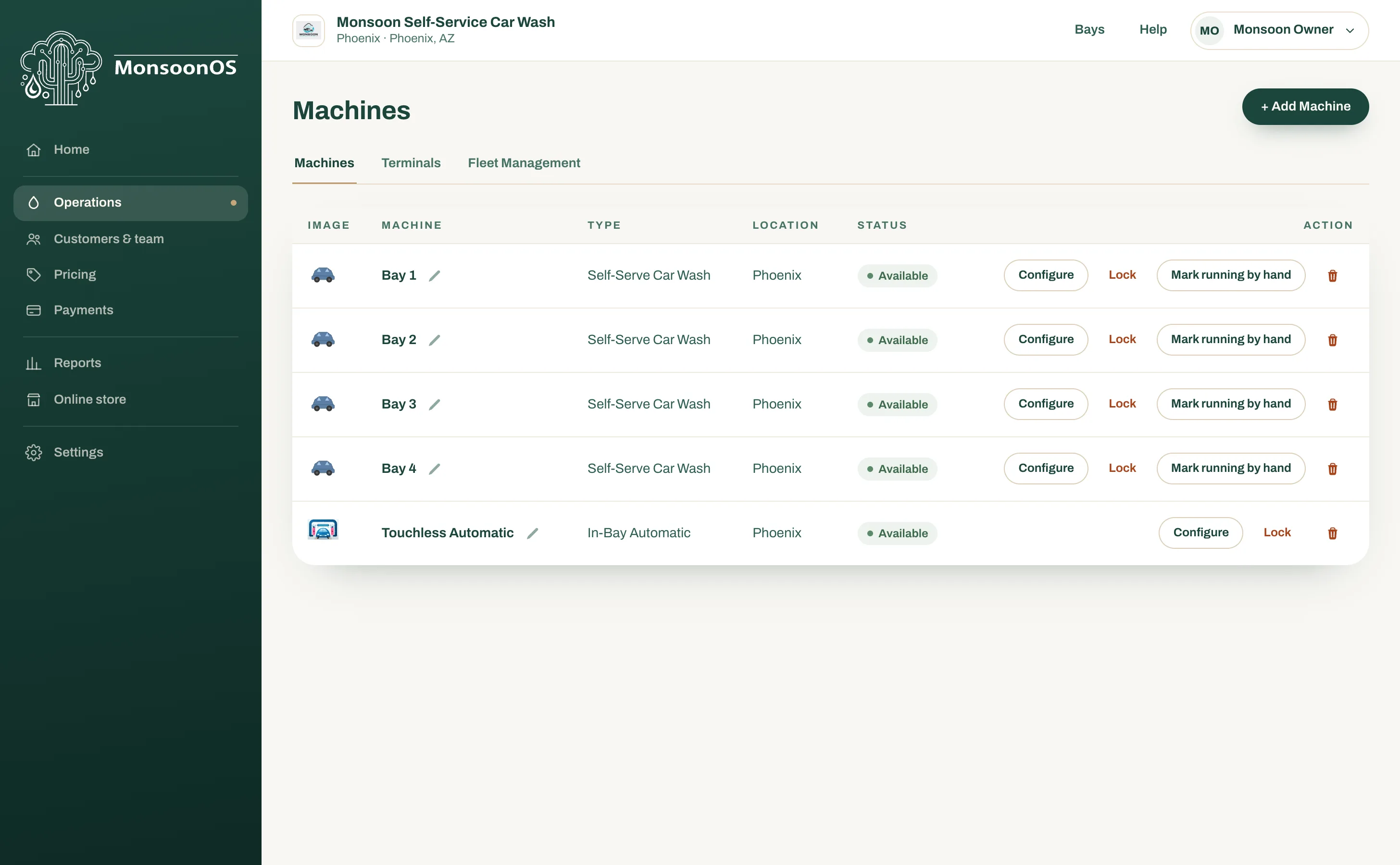
- Go to Operations › Machines. With several locations, choose one from Location at the top of the page to see only its machines.
- On the machine's row, select Lock.
The machine's status changes to Locked. To put it back in use, select Unlock on the same row. The status changes back to Available.
Machine statuses
| Status | What it means |
|---|---|
| Available | In service and unlocked. |
| Locked | Locked by your team. Select Unlock to put it back in use. |
| Out of service | Stormbox Enabled is off on the machine's Configure Stormbox page. See Bring a Stormbox online. |
Force Stop a bay that keeps running
Force Stop is for a bay that is still running even though MonsoonOS shows its session has ended. It tells the Stormbox to stop the bay whether or not MonsoonOS thinks a session is running, and clears any session stuck waiting to stop. It does not lock the bay. Your role needs Force-stop a wash.
From the machine's setup page
- On the Machines page, select Configure on the bay's row.
- Find Bay Recovery.
- Select Force Stop.
- Confirm.
Stop pulse confirmed appears when the Stormbox has stopped the bay.
From the Bays page (Full Wash Platform)
This is the way in for team members whose role does not include See machine setup.
- Select Bays in the top bar of the admin.
- On the bay's card, select Force Stop. A bay with a wash running shows Emergency Stop instead.
- Confirm.
A message at the top of Bays says when the bay has confirmed the stop.
Force Stop is not offered on:
- In-bay automatics. Once a wash starts, the in-bay automatic runs its own cycle.
- Count-down bays. The bay's own timer ends the wash when the paid time runs out. Bay Recovery says so, and to end a wash early you use the bay's physical stop.
Force Stop is greyed out while Stormbox Enabled is off.
Emergency Stop (Full Wash Platform)
On the Full Wash Platform, team members whose role includes Run machines can stop a customer's running wash from the Bays page. Open it with Bays in the top bar of the admin, or the Bays tab of the MonsoonOS app.
- Find the running machine on Bays.
- Select Emergency Stop.
The machine stops. On Bays it then shows Temp. Locked for the number of seconds set in Emergency Stop Lockout on its Configure Stormbox page (10 seconds unless you change it). A Wash On Demand customer is not charged for that wash, and a Wash Club member gets back what the start used.
Emergency Stop is not offered on in-bay automatics or count-down bays, for the same reasons as Force Stop.
Rain Pay Terminals Only does not include the Bays page.