Create a promotion
Use the five-step Create promotion wizard in the MonsoonOS admin to set up a percent or fixed discount, a free wash or an account credit, then choose where it works and how often it can be used.
- Plans
- Available on every MonsoonOS plan: Full Wash Platform and Rain Pay Terminals Only.
- Who can do this:
- On Full Wash, anyone whose role includes "Manage promotions" (Owner and Manager by default). On Terminals Only, your admin login.
A promotion is a discount, free wash or account credit that you set up once and customers use. The Create promotion wizard has five steps: Basic Info, Type, Eligibility, Limits and Review.
What works on each plan
| Promotion type | Where customers use it | Plans |
|---|---|---|
| Percent off or Fixed amount off with a promo code | A Rain Pay Experience terminal (the kiosk) | Both |
| Percent off or Fixed amount off | The MonsoonOS app, on the customer's account | Full Wash |
| Free wash or Account credit | The MonsoonOS app, on the customer's account | Full Wash |
Rain Pay Terminals Only has no customer accounts, so free washes and account credits do not apply. On Terminals Only, every promotion is a code that walk-up customers enter at the terminal, and the wizard shows only the choices that work there.
Before you start
- Pick the code customers will enter, such as WELCOME20. A promotion used at the terminal must have one.
- Know the value, the dates and how many uses you want to allow.
Open the wizard
- Go to Pricing › Promotions.
- Select Manage promotions.
- Select + Create Promotion.
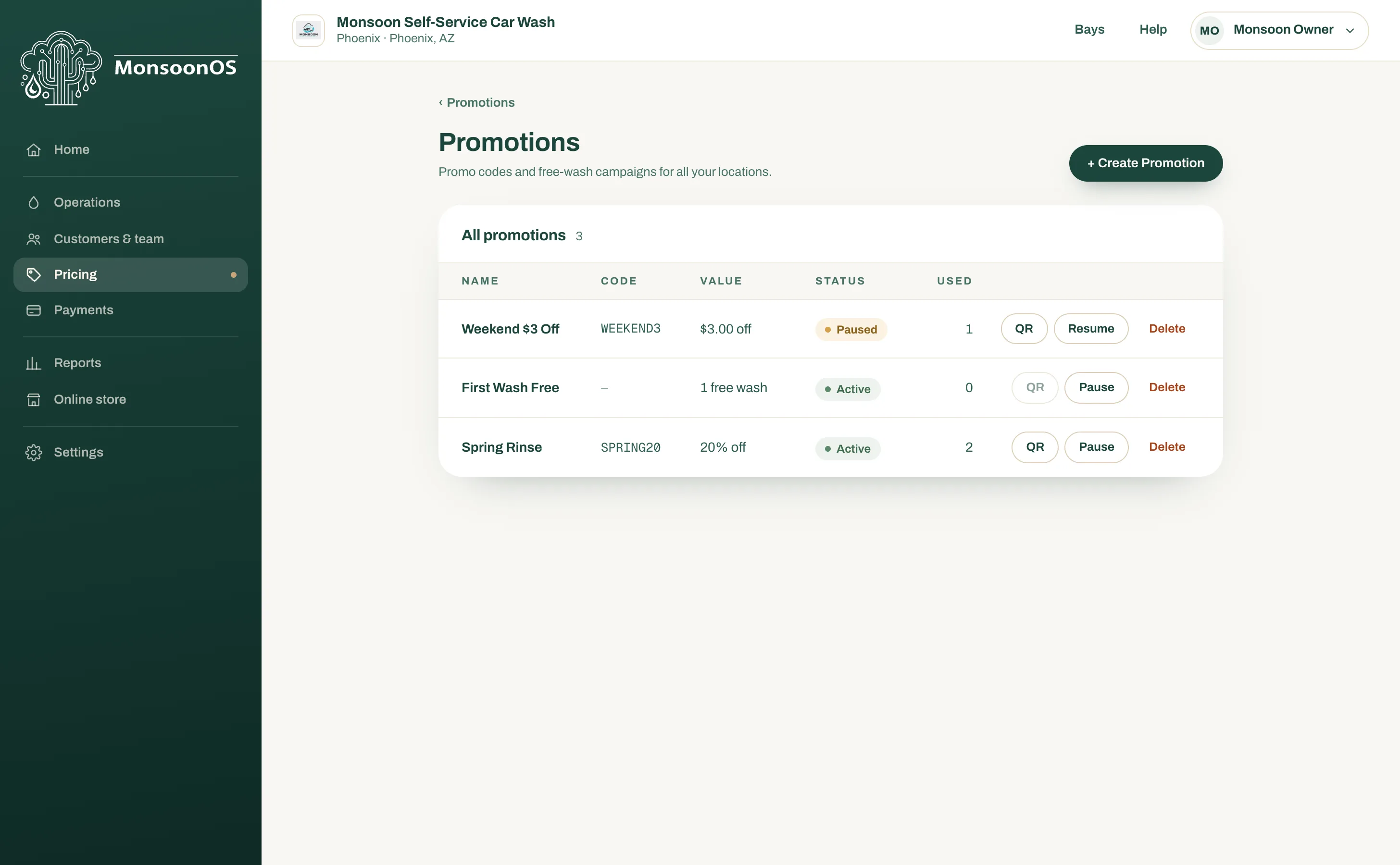
Step 1: Basic Info
- Enter a Name. Customers see this name.
- Optionally fill in Description (optional). It is shown to customers on the promotion's QR code page, so write it for them: what the offer is and how to use it.
- Leave Active immediately ticked to start the promotion when you save it. Untick it to save it paused.
- Select Next.
Step 2: Type
- Under Incentive type, choose Percent off, Fixed amount off, Free wash or Account credit. On Terminals Only, you see Percent off and Fixed amount off.
- Enter the value:
- Percent off: a whole number from 1 to 100.
- Fixed amount off or Account credit: the amount in dollars in Amount off ($) or Credit amount ($), such as 5 or 4.50. Use a period for cents.
- Free wash: the Number of free washes. To cap each free wash at a self-service bay, also fill in Wash duration (minutes, optional). Leave it blank for the bay's normal time. In-bay automatics ignore it.
- For Percent off or Fixed amount off, tick Discount the wash start only if you want the discount on the starting charge only. Per-minute time past the start is then charged at full price.
- Select Next.
Step 3: Eligibility
- Enter the Promo code (Required for Walk-Up Customers). On the Full Wash Platform you can leave it blank for a promotion you give to customers yourself.
- On the Full Wash Platform, optionally tick First-time customers only (customers who have never started a wash) or Active subscribers only (customers with an active Wash Club membership). Both check the customer's account in the MonsoonOS app.
- Under Where it applies, tick each place the promotion works:
- Wash on Demand (per-wash discount): washes paid in the MonsoonOS app (Full Wash). It starts ticked.
- Subscriptions (discount at signup, balance for credits): Wash Club memberships (Full Wash).
- Walk-up customers (terminal / kiosk): Rain Pay Experience terminals. Only Percent off and Fixed amount off work here, and the promotion needs a promo code.
- On the Full Wash Platform, optionally tick the machine types the promotion is for under Restrict to machine types (optional). This applies to washes paid in the app. Leave them all unticked to allow every machine type. A code at the terminal works on every machine type.
- Select Next.
On Terminals Only, the eligibility step has the promo code and Walk-up customers (terminal / kiosk), already ticked. Keep it ticked and enter a code. Wash on Demand, subscriptions, the customer checks and machine types are part of the Full Wash Platform, so they are not shown.
Step 4: Limits
- Optionally set Starts at (optional) and Ends at (optional). With no dates, the promotion runs until you pause it.
- Optionally set Max total redemptions (optional). Once the promotion has been used that many times, the code stops working. Uses at the terminal count toward it.
- On the Full Wash Platform, set Max redemptions per customer. It starts at 1 and counts uses by each customer account in the MonsoonOS app. A walk-up customer at the terminal has no account, so it does not limit them, and Terminals Only does not show it.
- Select Next.
Step 5: Review
- Check the summary. Applies to lists the places you ticked, and Total cap shows your limit (with Per-customer cap on the Full Wash Platform).
- Select Save promotion.
The promotion appears in the list on Manage promotions.
Manage your promotions
The list on Manage promotions shows each promotion's Name, Code, Value, Status and how many times it was Used. The status is one of:
- Active: customers can use it now.
- Scheduled: its start date has not arrived.
- Expired: its end date has passed.
- Paused: you paused it, or it was saved without Active immediately.
On each row:
- Select the name to open Promotion details, which lists every setting, including the wash duration and whether the discount covers the wash start only.
- Pause stops the promotion at once. Resume turns it back on. If another active promotion uses the same code, you see a message instead: pause that promotion first.
- QR makes a QR code for a promotion that has a code. See Promo codes and QR codes.
- Delete removes a promotion that was never used, after you confirm. A promotion that has been used cannot be deleted: MonsoonOS asks whether to pause it instead, and it stays in the list as Paused with its redemptions on record.
The web admin has no way to change a saved promotion's settings. To change one, pause it and create a new promotion with the new settings. You can reuse the code once the old promotion is paused.
Next
Promo codes and QR codes shows how customers use your code and how to print or email its QR code.