Promo codes and QR codes
How customers use a MonsoonOS promo code at a Rain Pay Experience terminal or in the MonsoonOS app, and how to download, print or email a promotion's QR code.
- Plans
- Available on every MonsoonOS plan: Full Wash Platform and Rain Pay Terminals Only.
- Who can do this:
- On Full Wash, anyone whose role includes "Manage promotions" (Owner and Manager by default). On Terminals Only, your admin login.
A promo code is the word customers enter to get a promotion, such as WELCOME20. Every promotion that has a code also has a QR code you can print, download or email. To set up the promotion itself, see Create a promotion.
How codes work
- Capital and small letters do not matter: welcome20 works the same as WELCOME20.
- One code belongs to one active promotion at a time.
- A code works only while its promotion is Active: not paused, and inside its start and end dates.
- Once the promotion has been used as many times as you allowed, the code stops working.
Where customers use a code
At a Rain Pay Experience terminal
On the wash list, the customer opens the kiosk's promo code button, then scans the QR code with the terminal's camera or types the code. The discount shows before they pay. What customers see on the kiosk shows these screens.
A code works at the terminal only when its promotion has Walk-up customers (terminal / kiosk) ticked and is Percent off or Fixed amount off. A free wash or account credit code is turned down at the terminal. MDB card readers do not take promo codes.
In the MonsoonOS app (Full Wash)
On the Full Wash Platform, a customer can add a code to their account:
- In the MonsoonOS app, they open the Wallet tab.
- Under Rewards and Credits, they type the code in the Have a code? box.
- They tap Apply.
The app says Promo applied, and the reward is listed under Rewards and Credits. A free wash shows Available at start and is used when they start a wash. An account credit shows Applies automatically. A code they already added says Already added. See Wallet, credits and billing history.
Make a QR code
- Go to Pricing › Promotions.
- Select Manage promotions.
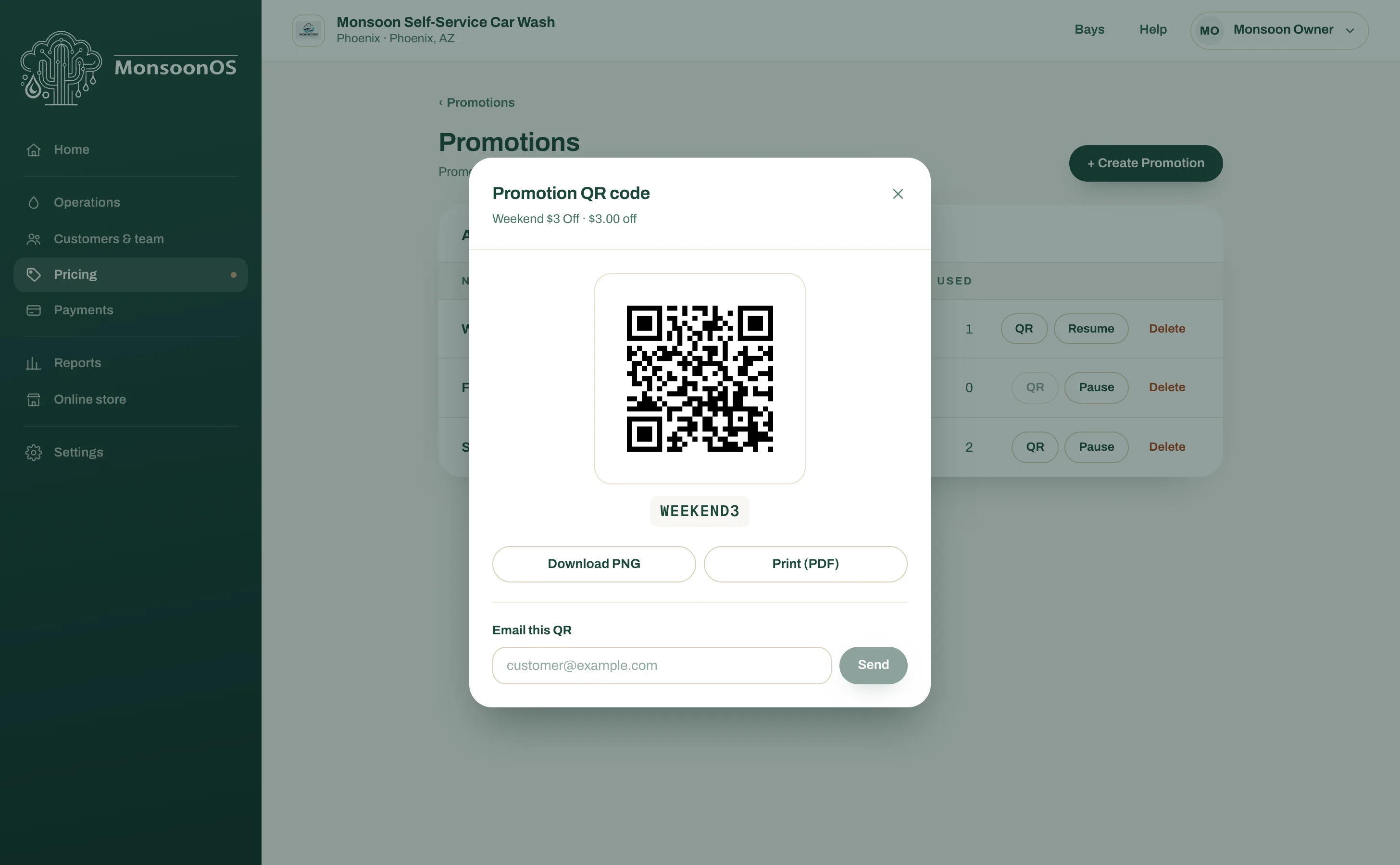
- On the promotion's row, select QR.
- The Promotion QR code window shows the QR code with the code under it. Choose what you need:
- Download PNG saves the picture, for a flyer, a social post or your website.
- Print (PDF) opens a page ready to print, for a sign at the bay or the kiosk.
- Email this QR sends the QR code and the code to one email address. Type the address, then select Send.
The QR code encodes your business's own web address for the promotion, so print it once and it keeps working while the promotion is active.
What the QR code opens
Scanned with a phone camera, the QR code opens a page with your logo, the promotion's name, its value, its dates, its description and the code, with the note Show this code or QR at the wash. The customer can then scan it at the kiosk or type the code. Write the description with this page in mind: customers read it.
If the promotion is paused, expired or its code is wrong, the page says Offer not available instead.
Next
Track redemptions shows how often each code was used.