How customers delete their account
How your customers delete their own MonsoonOS account in the app or on the web, how you erase an account for a customer who asks you, what happens to a membership they still have, and what stays in your records afterwards, on the Full Wash Platform.
- Plans
- Available on the Full Wash Platform only. Rain Pay Terminals Only does not include it.
Customers can delete their own accounts in the app or on the web, with the steps below. If a customer asks you to delete their account for them, by phone or by email, you can erase it from the admin: see Erase a customer who asks you below. If you only want to stop them using your machines, block them instead: see Block a customer or cancel a membership.
How the customer does it
In the app:
- Open the Account tab and scroll to the bottom.
- Tap Delete Account.
- Read what will happen, then confirm who they are: type their Password, or their Email if they sign in with Apple or Google only.
- Tap Delete My Account.
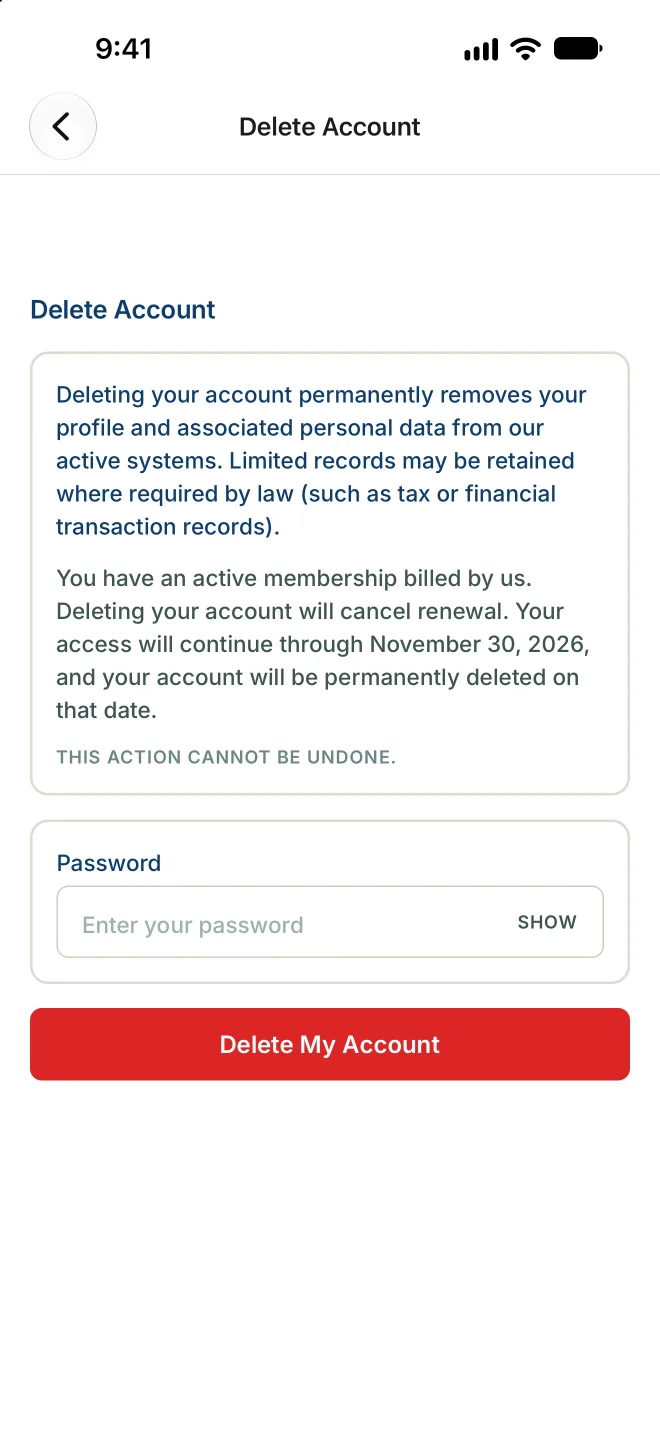
On the web: the account deletion page on your MonsoonOS address (/delete-account) explains the same steps and has a Log in to Delete Your Account button. After signing in, the customer opens My Account, goes to Delete Account and selects Delete My Account.
Either way, the customer gets an email confirming the request.
When the account is deleted
| The customer has | What happens |
|---|---|
| No active membership | The account is deleted straight away. |
| An active Wash Club membership | The membership stops renewing. They keep their plan and can use the app until the end of the period they paid for, then the account is deleted on that date. |
| A membership with a failed payment | The missed payments are cleared, so they owe nothing more. |
While a deletion is waiting for its date, the customer shows in Customers as Pending Cancel, with that date. The app shows them Deletion Requested and the date.
Erase a customer who asks you
Your role needs Erase customers. Owners have it; add it to another role in Customers & team › Team › Roles if someone else handles these requests.
- Open Customers & team › Customers and find the customer.
- On their row, select Erase.
- Type the customer's email exactly as it shows on their account.
- Select Erase customer.
The account is erased straight away: the customer is signed out everywhere and gets an email saying their account was deleted. It can't be undone. Their records stay in your reports the same way as when they delete the account themselves (see below).
What stays in your records
When the account is deleted, whether the customer did it or you erased it, the customer's login and profile are removed, along with any free washes and account credits they had left. Your business records stay, without their name or contact details:
- their past washes and payments, so your reports and totals do not change;
- their membership bills;
- promotions they redeemed.
Some records the law requires, such as financial transaction records, are kept too. The customer sees this explained on the delete screen.
A deleted customer no longer appears in Customers or in the customer export. If they come back, they create a new account.