What customers see on the kiosk
Each screen a customer moves through on a Rain Pay Experience terminal, from Tap to Start to the receipt, so you can answer their questions.
- Plans
- Available on every MonsoonOS plan: Full Wash Platform and Rain Pay Terminals Only.
- Needs
- You need a Rain Pay Experience terminal (shown in the admin as a Wash terminal).
- Audience
- Describes what your customers see, so you can answer their questions.
A Rain Pay Experience terminal walks the customer through a few screens. The wording below is what they see.
A normal wash
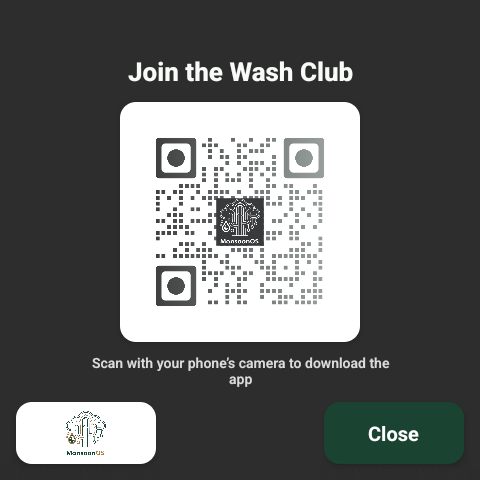
- Start screen. The whole screen reads Tap to Start. On a Full Wash site it can also show Join Wash Club, which opens a QR code for the customer app.
- Choose a wash. The heading reads Choose your car wash (or Choose your dog wash). Each option shows its price; one may carry a Most Popular badge that you set in pricing.
- Extras. If the wash has add-ons, Add extras? lists them with Continue and Skip.
- Pay. The terminal shows the amount (with Subtotal and Tax if you charge sales tax), then the card reader screen asks the customer to tap or swipe a card.
- Running. The screen shows the bay name with Washing or Time remaining. Pay-per-minute washes show the cost so far and Max with the most they can be charged. Prepaid time shows Add time buttons such as +5 min. A red STOP button ends the wash, except on a count-down bay, where the bay's own timer ends it. While a count-down start is still loading onto the bay timer, the screen says Loading your time onto the bay timer… and the Add time buttons wait.
- Done. Thanks, you're done! with the Total charged. The customer can Scan for your receipt with their phone or type an email for Email me a receipt. The terminal returns to the start screen after a few seconds.
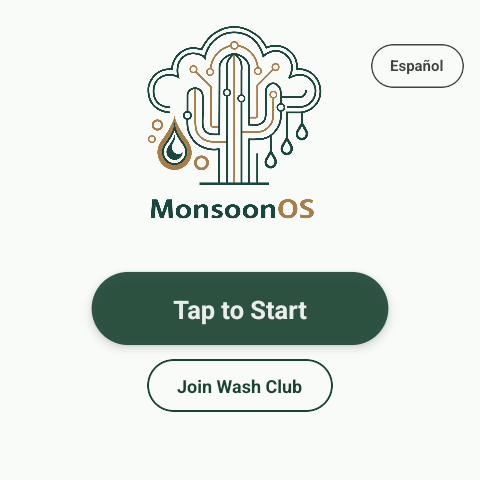
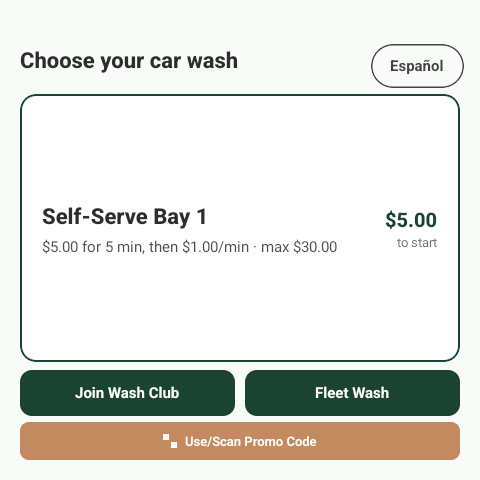
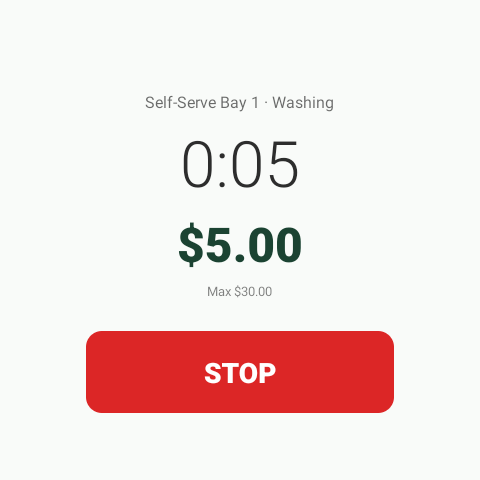
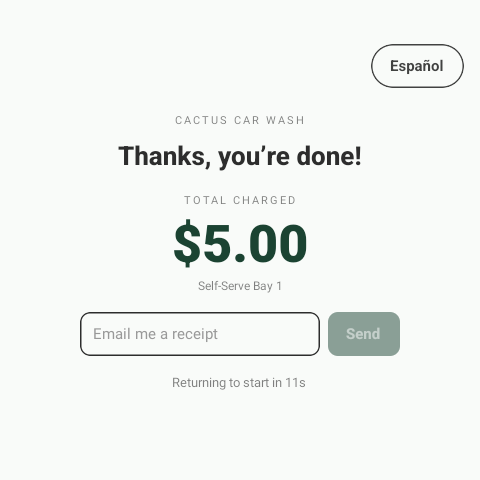
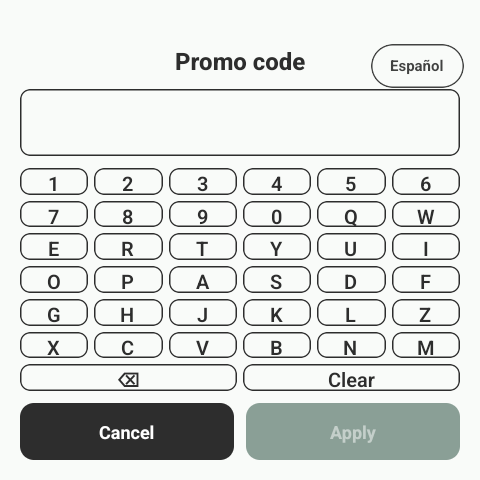
The start, wash list, keypad and receipt screens have an Español button that switches the kiosk to Spanish.
Pay-per-minute washes
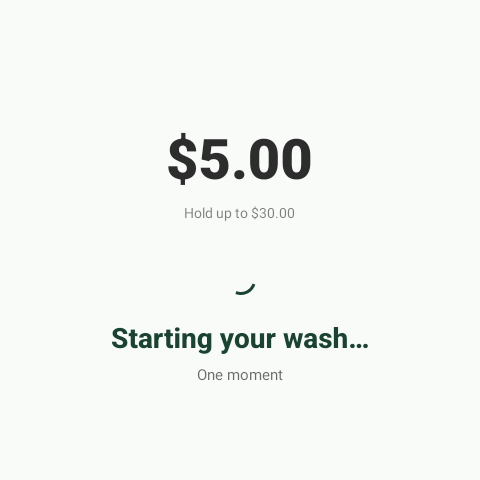
On a wash billed by the minute, the wash card says the card is pre-authorized for the maximum and only the final amount is charged. The running screen shows Max and the amount; when the maximum is reached the wash stops on its own.
Promo codes
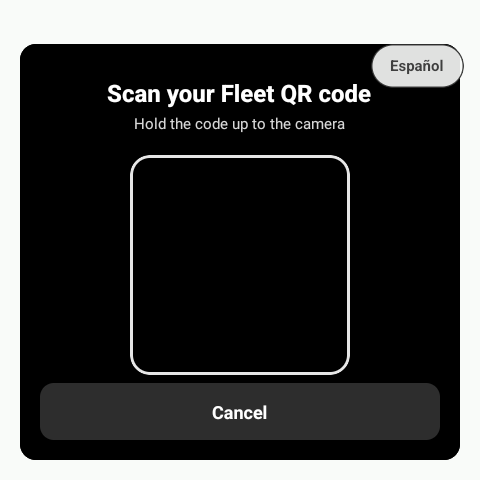
On the wash list, Use/Scan Promo Code opens the camera for a promo QR code, with Enter promo code to type it instead. An applied promo shows as a badge with the discount and tap to remove.
Fleet washes
When you have Fleet, the wash list shows Fleet Wash (Pack Wash for dog washes). The driver scans their QR code, enters their 4-digit fleet PIN and chooses a wash. Nothing is charged to a card.
In-bay automatic washes
At an in-bay automatic, after paying the customer sees Starting the wash at the bay and Please follow the bay's instructions. When the terminal is mounted in the bay's pay station, the start screen also says Press your wash on the pay station: the customer presses a wash on the pay station's own buttons and pays on the terminal.
Messages customers may report
| The customer sees | What it means | What to do |
|---|---|---|
| Card declined | The card was declined. Nothing was charged. | They can try another card. |
| Temporarily unavailable | The bay is not responding, so nothing was charged. | Check the machine's Stormbox is online in Machines. |
| In use right now | Someone is using the bay. | Wait or use another bay. |
| Your wash didn't start with Your card has not been charged. | The wash could not start and the payment was returned. | Nothing to refund. |
| Your wash didn't start with Your card was charged. | The wash could not start and the automatic refund did not go through. | Refund the charge in Refunds & Credits. |
| Not charged yet | The card was approved but MonsoonOS did not hear back in time. The payment is held so the customer is never charged twice. | Check Held Payments and settle it there. |
| No bay configured | The terminal is not assigned to a bay. | Revoke it and add it again with the right bay. See Bay terminals and shared kiosks. |