Find and manage customers
Search your customer accounts in MonsoonOS, read their status, add a customer, reset a password, send a card-update link and erase a customer who asks, on the Full Wash Platform.
- Plans
- Available on the Full Wash Platform only. Rain Pay Terminals Only does not include it.
- Who can do this:
- On Full Wash, anyone whose role includes "Look up customers" (Owner, Manager and Staff by default).
Customers lists everyone with an account at your wash: Wash Club members, Wash On Demand customers, and people who signed up but never finished. Rain Pay Terminals Only does not include customer accounts.
Find a customer
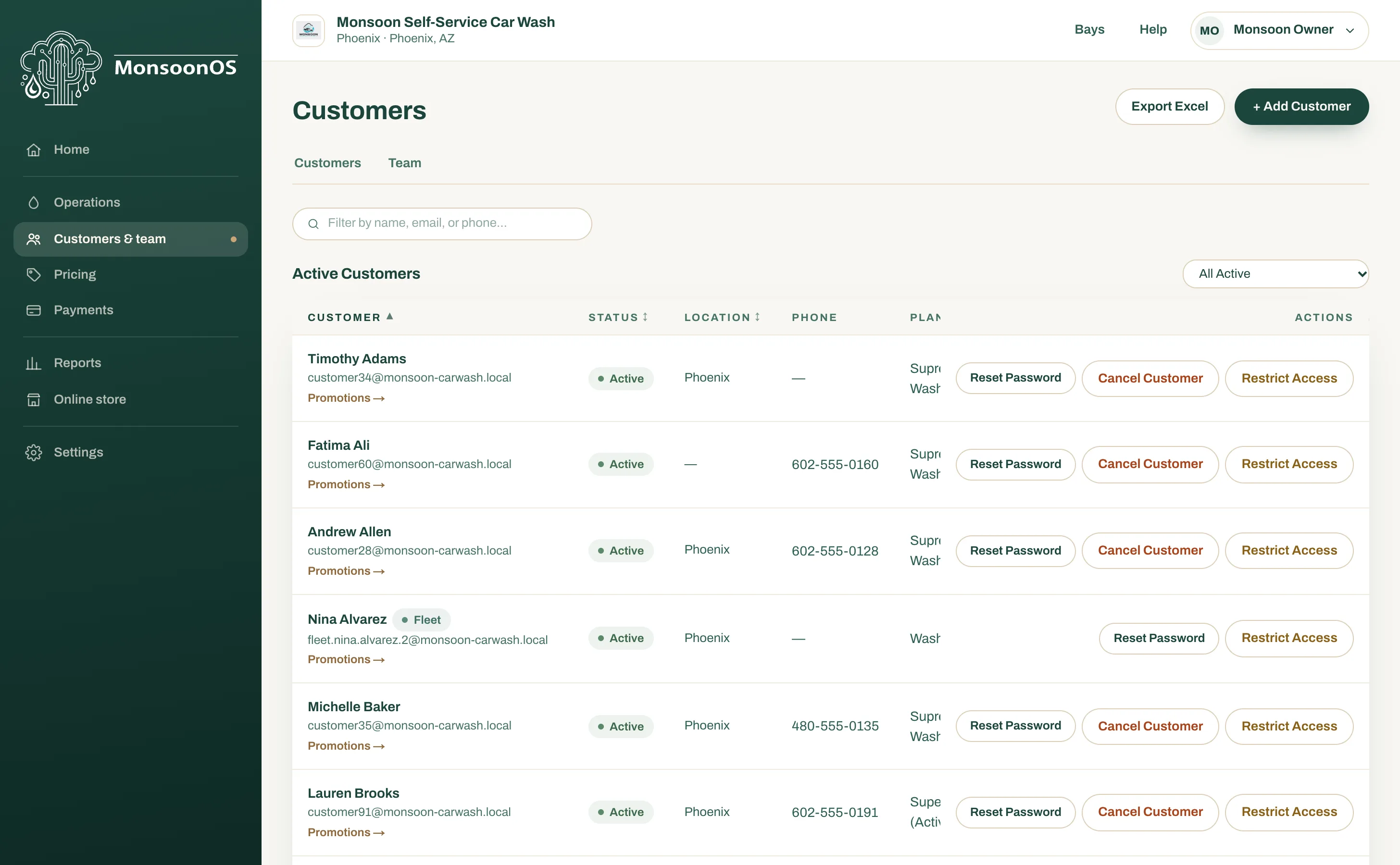
- Open Customers & team › Customers.
- Type a name, email or phone number in the search box.
Customers are split into three lists, each with a filter at its top right:
- Active Customers
- Under Review: customers who are blocked or whose card failed.
- Inactive Customers
Each row shows the customer's location, phone, plan, status and dates. Select a column heading such as Customer, Plan or Status to sort by it. A customer who also belongs to a company fleet has a Fleet badge.
What each status means
| Status | List | Meaning |
|---|---|---|
| Active | Active Customers | A Wash Club member in good standing, or a Wash On Demand customer with a card saved. |
| Pending Cancel | Active Customers | The membership is canceled. Access continues until the date shown. |
| Pending WOD Conversion | Active Customers | The membership ends on the date shown, then the customer pays per wash with their saved card. |
| Restricted | Under Review | Blocked from starting machines. See Block a customer or cancel a membership. |
| Payment Method Hold | Under Review | A membership payment failed and the grace period ran out, so access is paused until the card is updated. |
| Incomplete Signup | Inactive Customers | Created an account but never finished choosing a plan or saving a card, and never washed. |
| Inactive | Inactive Customers | No active plan and no saved card. |
Add a customer
Your role needs Edit customers.
- Select + Add Customer.
- Fill in First Name, Last Name, Email and Confirm Email.
- Choose a Password: at least 8 characters, with one uppercase letter and one number or special character.
- Optionally add Phone, Street, City, State and ZIP.
- Select Add Customer.
Give the customer their password in person or by phone. When they first sign in to the app, it asks them to choose Wash Club or Wash On Demand.
Reset a customer's password
Your role needs Edit customers.
- Find the customer under Active Customers or Under Review.
- On their row, select Reset Password.
MonsoonOS emails the customer a link to choose a new password, and a box at the top of the page shows the same link with a Copy button. The link works once and expires in 1 hour. If the box says the email failed, copy the link and send it to the customer yourself, for example by text.
Ask a customer to update their card
When a customer shows Payment Method Hold, select Send Payment Update on their row under Under Review. MonsoonOS emails them a link to put in a new card. Updating their card restores their access.
Erase a customer who asks
When a customer asks you to delete their account, select Erase on their row (your role needs Erase customers) and type their email to confirm. See How customers delete their account for what is removed, what stays in your records, and what to do when they still have a membership.
What you cannot change here
Customers keep their own name, phone number and address up to date in the app, under Account. The admin does not edit those details.